













Edit Employer Searchable Information
Overview
Employers and recruiters can search for résumés in the system using a variety of criteria, including occupation, job location, salary range, keywords, and more. The more details you provide in your profile, the higher your chances of appearing in relevant search results.
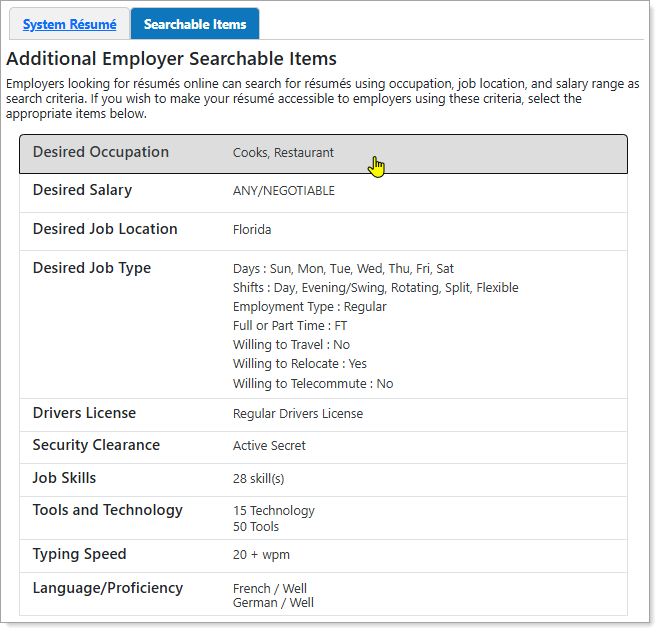
Edit Résumé — Searchable Items Tab
How Résumé Updates Affect Your Profile and Other Résumés
Changes to your résumé information can carry through to your Personal Profile and other résumés. In some cases this occurs automatically and in others you can decide what is updated. The table below provides information on how changes occur in the system.
 Résumé Change Effect Table
|
Résumé Section |
Profile Background and/or All Résumés Updated Automatically |
Optional Update to Profile Background and/or Résumé |
No Update to Profile Background or Other Résumés |
|---|---|---|---|
| Desired Occupation |

|
||
| Desired Salary |
|
||
| Desired Job Location |
|
||
| Desired Job Type |
|
||
| Drivers License |
|
||
| Security Clearance |
|
||
| Job Skills |
|
||
| Tools and Technology |
|
||
| Typing Speed |
|
||
| Language/Proficiency |
|
||
Where to Find This Feature
-
Top menu bar > Résumé icon > Résumé Manager button > [résumé thumbnail icon] > Searchable Items tab
-
Left navigation menu > Quick Menu > Résumé Builder > [résumé thumbnail icon] > Searchable Items tab
-
My Dashboard > Widgets > Job Seeker Services widget > Résumé Builder link > [résumé thumbnail icon] > Searchable Items tab
-
Directory of Services tab > Services for Individuals > Job Seeker Services icon > Résumé Builder icon > [résumé thumbnail icon] > Searchable Items tab
Steps to Edit Your Employer Searchable Information
The Searchable Items tab is comprised of several sections containing key background information. Each is explained below.
Your site may display different options from those shown here.
Desired Occupation
-
Select the Desired Occupation item to display the Select an Occupation window.
-
Select your occupation from the drop-down list or use the Search for an Occupation link to display the occupation search page where you can search for and select your occupation.
-
To Update background information with desired occupation, check the box. You can leave this unchecked if you are creating a custom résumé for a specific job or occupation.
-
To display your selected occupation's employment and wages profile, select the View Labor Market Information link.
-
Select the Save button.
See Occupation Profile for details.
Desired Salary
-
Select the Desired Salary item to display the Desired Salary window.
-
Select your Desired Salary from the drop-down list.
-
To Update background information with desired salary, check the box. You can leave this unchecked if you are creating a custom résumé for a specific job or occupation.
-
To see how well your salary expectations compare in a different location, select the Cost of Living Comparison link. See Compare the Cost of Living in Different Areas for details.
-
To display your selected occupation's employment and wages profile, select the View Labor Market Wage Rates link. See Occupation Profile for details.
-
Select the Save button to save your changes.
Desired Job Location
-
Select the Desired Job Location item to display the Desired Location window.
-
Select the Edit button to display the Desired Location page.
-
Select a desired location by State, County, or ZIP Code. See Specify Your Desired Job Location for details.
-
To Update background information with the selected location, check the box. You can leave this unchecked if you are creating a custom résumé for a specific job or occupation.
-
Select the Save button to save your changes.
Desired Job Type
Editing, deleting, or adding information here also edits, deletes, or adds to your Profile Background and other résumés. If you wish to customize the information on this resume only, use the "Display on Resume" checkboxes.
-
Select the Desired Job Type item to display the Desired job Type window.
-
To create a new set of desired job specifications, select the Add New Profile button. See Specify Your Desired Job Type for details.
-
To modify an existing profile, select the Edit button in the Action column to display the Desired Job type details page.
-
To remove a profile, select the Delete button in the Action column and Ok on the confirmation.
-
If you have multiple profiles, then to display a specific profile on your résumé, select the option button in the Display on Résumé column (only one selection allowed).
-
Select the Save button to save your changes.
Your first profile becomes your default Desired Job Type profile. The default profile ensures that a job seeker's profile displays to employers and staff, even in cases where job requirements and profiles seemingly cannot be matched. You cannot delete the default profile if it is the only one. You must create another profile first.
Drivers License
-
Select the Drivers License item to display the Drivers License Information window.
-
Select options as applicable to define your driver's license state, type, endorsements, etc., and select the Save button to save your changes. See Add or Edit Driver's License Information for details.
Security Clearance
-
Select the Security Clearance item to display the Security Clearance window.
-
Select your clearance level from the What is your current security clearance? drop-down list.
-
Select the Save button to save your changes.
Job Skills
-
Select the Job Skills item to display the Job Skills window, which shows skills you previously selected for each skill category, if any.
-
To change the listed skills, select the Modify Skills button at the bottom of the window. The Job Skills window changes to display skills category tabs on the left and related skills with checkboxes on the right.
-
Use the checkboxes to change your selected skills for each category. See Add or Edit Job Skills for details.
-
Select the Save button to save your changes and Close to return to your résumé.
Tools and Technology
-
Select the Tools and Technology item to display the Tools and Technology window, which shows the tools and technology you previously selected for each category, if any.
-
To add tools and technology, you can do so in two ways:
-
Select the Add tools and technology by keyword button at the bottom of the window to display the Show tools and technology skill by Keyword page, where you can enter a keyword to search for and select.
-
Select the Add tools and technology by occupation button at the bottom of the window to display the Occupation Search page, where you can search for and select your occupation.
-
-
Either method displays the Add Tools and Technology page with skills based on your selections. Select the boxes for your tools and technology items as desired and select the Add these tools and technology button. The Tools and Technology window displays with your revised list.
-
Select the Save button to save your changes.
Typing Speed
-
Select the Typing Speed item to display the Typing Speed window.
-
Select your proficiency from the Typing Speed drop-down list.
-
Select the Save button to save your changes.
Language/Proficiency
-
Select the Language/Proficiency item to display the Languages and Proficiency window.
-
Select the buttons as required to add, edit, or delete your languages. See Indicate Your Languages and Proficiency for details.
-
Select the Save button to save your changes.