
 Left Navigation Menu












Left Navigation Menu
Overview
The Left Navigation Menu provides quick and organized access to the main sections of the system. Whether you are searching for jobs, conducting market research, accessing services, managing résumés, applying for benefits, etc., the left menu is a key tool for moving through the application.
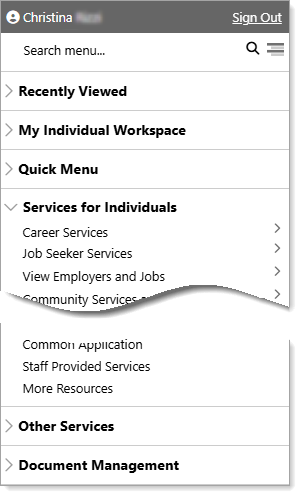
Left Navigation Menu
When not in use, the left menu is hidden by default to maximize real estate on the page.
Where to Find This Feature
-
“Hamburger” icon (three horizontal lines) in the upper left corner of the header bar on every page in the system
About the Left Navigation Menu
The menu appears from the left and the current page is grayed out until a selection is made or the menu is closed. The left navigation menu includes the following features:
-
X – Select to close the menu, or simply click off the menu anywhere on the grayed-out page.
-
Your name – Select to display a summary snapshot of your information and a Personal Profile link. Select the X to redisplay the menu.
-
Sign Out – Select to log off the system.
-
Search the menu… – Enter text to limit the display of left navigation menu options to matching entries. Select the X to clear the field and redisplay all options.
-
Description text toggle – Select the horizontal lines in the upper right corner of the menu to turn on/off brief descriptions of each menu option.
-
Expand/Collapse arrows – Lets you display menu/sub-menu options for a single group or main option.
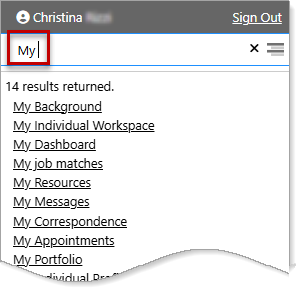
Searching the Menu