
 Left Navigation Menu












Tools and Technology Assessment
Overview
The Tools and Technology tab of your Self Assessment Profile lists your saved technical abilities and the job-related tools you use proficiently. You can use this information to find occupations that match your skills, helping you discover job opportunities you may not have considered.
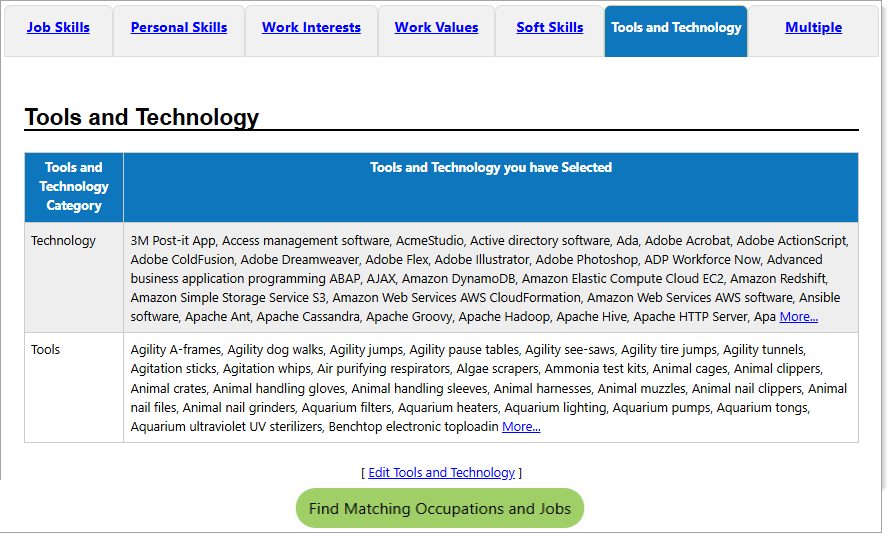
Tools and Technology
Where to Find This Feature
-
Header bar > Profile icon > My Individual Profiles folder > Self Assessment Profile folder > Tools and Technology tab
-
Left navigation menu > Quick Menu > My Portfolio > Self Assessment Profile > Tools and Technology tab
-
My Dashboard > Widgets > My Assessments widget > Tools and Technology Skills link
-
Directory of Services tab > Services for Individuals > Career Services icon > Career Explorer icon > Match Your Knowledge of Tools and Technology icon
Steps to Add Tools and Technology
Tools and Technologies may already appear based on the occupations you entered in your work experience. Follow these steps to update your list.
-
Select the Edit Tools and Technology link. The Tools and Technology page opens and displays your current selections. If your list already looks complete, skip to Step 5.
-
Add or remove items using the checkboxes in the Select column. Use the checkbox in the Select column header to choose all or deselect all.
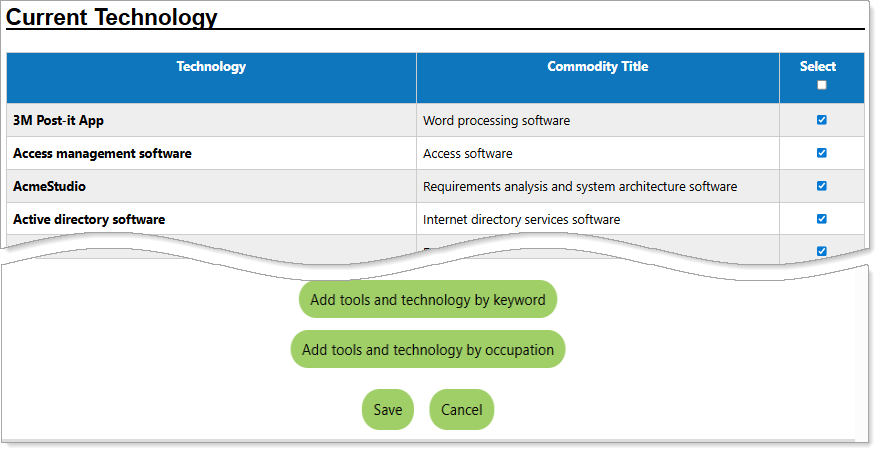
Current Technology Section
-
To add more tools and technology, choose one of the following options:
-
Select the Add tools and technology by keyword button—Best for specific skills like "SQL" or "welding."
-
Enter a keyword and select the Search button to generate a list of related skills. Select the items you want using the checkboxes, and then select the Add these tools and technology button to save them.
-
-
Select the Add tools and technology by occupation button—Best for exploring broader skill sets.
-
Search for and select your occupation to view related tools and technologies. See Search for an Occupation for details.
-
Select the items you want using the checkboxes, and then select the Add these tools and technology button to save them. The Current Tools and Technology page redisplays.
-
-
-
Select the Save button to confirm your changes. Your updated list now appears on the Tools and Technology tab of your Self Assessment Profile.
-
To view job and occupation matches, select the Find Matching Occupations and Jobs button.
Steps to Find Matching Occupations and Jobs
Choose a match level for your assessment: Closely, Moderately, Loosely, or Show all occupations and select the Continue button. If your results are too narrow, select the Change Match Level link below the results grid and select a broader match level.
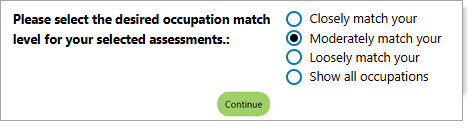
Match Level selections
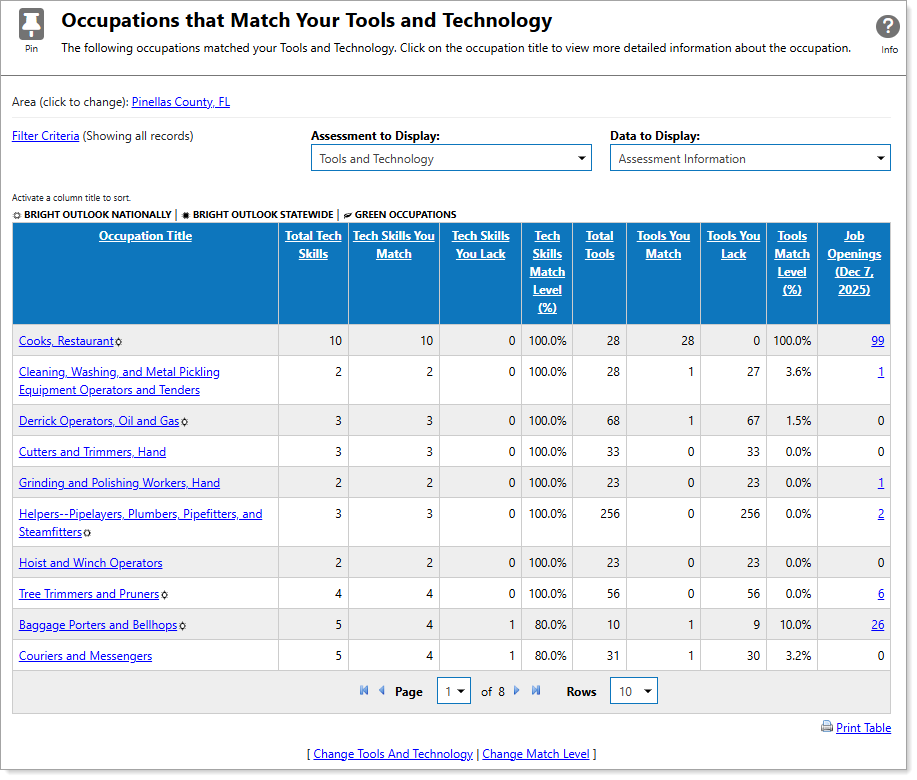
Occupations that Match Your Tools and Technology
Your matching occupations appear in a table that includes links to:
-
Occupation Profiles (in the Occupation Title column).
-
Job Openings related to each occupation.
For more details on the Occupations Match page, see View Occupations That Match Your Assessment Outcome