
 Left Navigation Menu












Search for Scholarships
Overview
This option allows you to search for scholarship opportunities throughout the United States using a comprehensive database of financial aid awards worth over $10 billion, primarily sourced from Peterson’s Financial Aid Database and other contributors. You can search for scholarships matching your academic qualifications, interests, ethnicity/heritage, and other qualities and preferences.
Where to Find This Feature
-
Header bar > Profile icon > My Individual Profiles > Search History Profile > Scholarships link > Search for Scholarships button
-
Left navigation menu > Services for Individuals > Education Services > Scholarship Search
-
My Dashboard > Education Services widget > Additional Options link > Scholarship Search icon
-
Directory of Services tab > Services for Individuals > Education Services icon> Scholarship Search icon
-
Footer > Services > For Individuals > Education Services icon > Scholarship Search icon
Steps to Find Scholarships
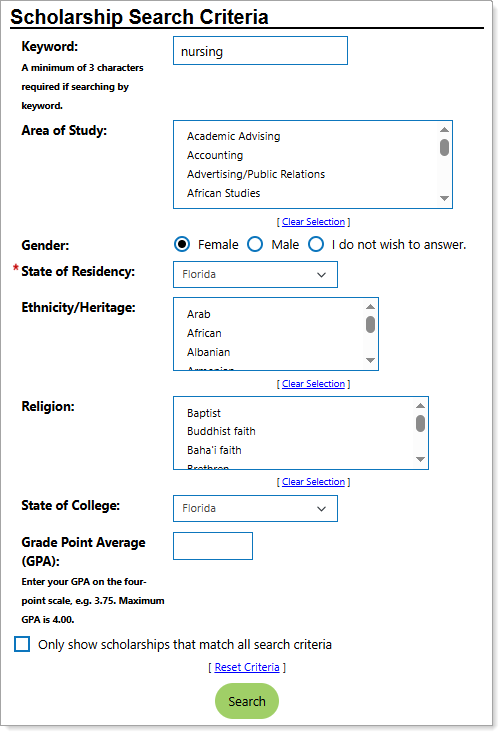
Scholarship Search Page
You can use basic and advanced search criteria to find scholarships. Only the State of Residency is required.
To complete a search, enter the search criteria using any combination of the following options:
-
Enter a Keyword using a minimum of three characters that best describes your search target.
-
Select the area(s) of study. You may select multiple options from the list by holding down the Control key on your keyboard. You may select a large group of study areas by selecting the first one, and holding down the Shift key while selecting the last one. Select the Clear Selection link to remove your selections.
-
Select a Gender from Female, Male, or I do not wish to answer.
-
Select a State of Residency from the drop-down list.
-
Select an Ethnicity/Heritage or choose multiple. You may select multiple options from the list by holding down the Control key on your keyboard. You may select a large group of ethnicities/heritages by selecting the first one, and holding down the Shift key while selecting the last one. Select the Clear Selection link to remove your selections.
-
Select a Religion. Select the Clear Selection link to remove your selection.
-
Select a State of College from the drop-down list. This can be used to select a state where you plan to attend college.
-
Enter a Grade Point Average (GPA) using the four-point scale, such as 3.75. The maximum GPA you can enter is 4.00.
-
Select the checkbox to only show scholarships that match all selected search criteria.
-
Optionally, you can select the Reset Criteria link to clear all search options and display all scholarship results. You then need to choose a State of Residency from the drop-down list before you may search.
-
Select the Search button. The search results page displays with the number of results in the top left.
Manage Scholarship Search Results
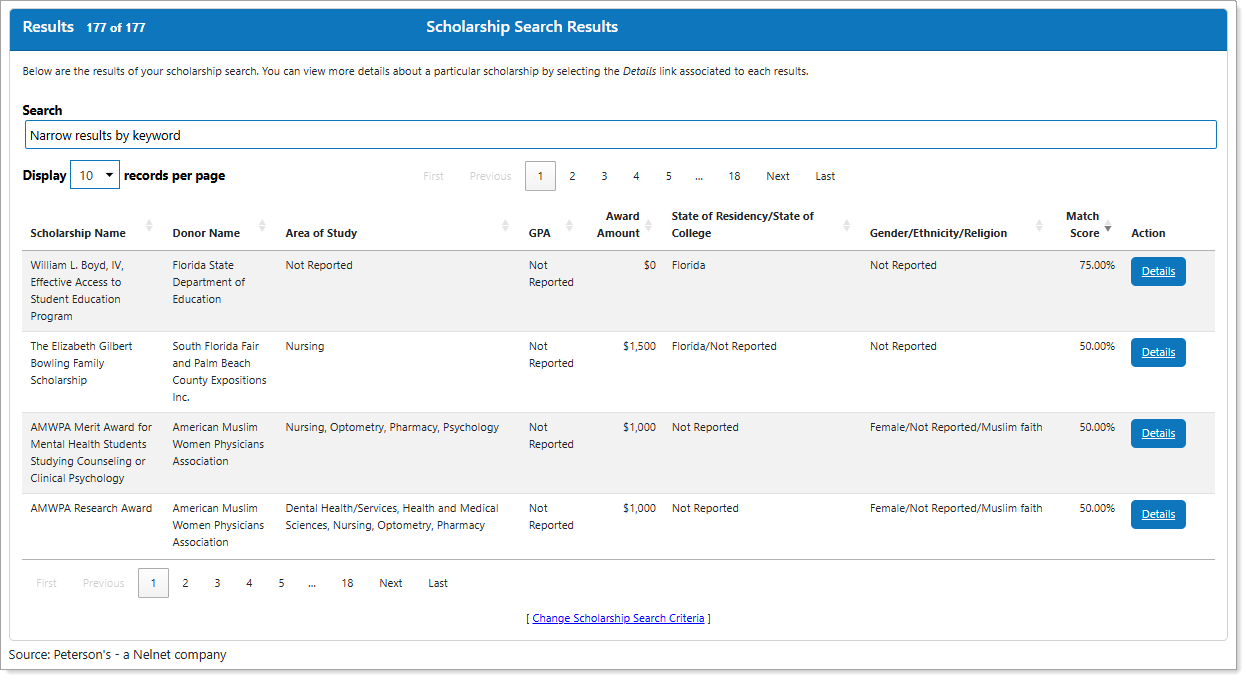
Scholarship Search Results
|
To... |
Do This: |
|---|---|
|
Sort |
By default, the results are sorted with the scholarship having the strongest Match Scores listed first. The scholarship results table can be sorted by the values contained in any of the table columns. Selecting a column heading sorts the table by that column heading in ascending order. Selecting the column heading a second time sorts the table by that column heading in descending order. Selecting the column heading a third time removes any sorting by that column. |
|
Refine Results |
You may further refine your search results by entering a keyword or number in the Search field. For example, an entry of '3.0' filters the results to display only scholarships with a GPA requirement of 3.0. The matching list of scholarships adjusts as you type. Select the X icon to clear the filter. |
| Adjust Output |
The number of scholarships displayed per page can be adjusted by selecting from the Display [number] records per page drop-down list. Additionally, you may navigate to other results pages by using the navigation options at the top of the results table. |
| Change Criteria |
To change your scholarship search criteria, select the Change Scholarship Search Criteria link. |
| See More | Select the Details button in the Action column to display the Scholarship Detail page. Select the Show Additional Scholarship Information link for more information about the scholarship's requirements and sponsor. |
About Scholarships
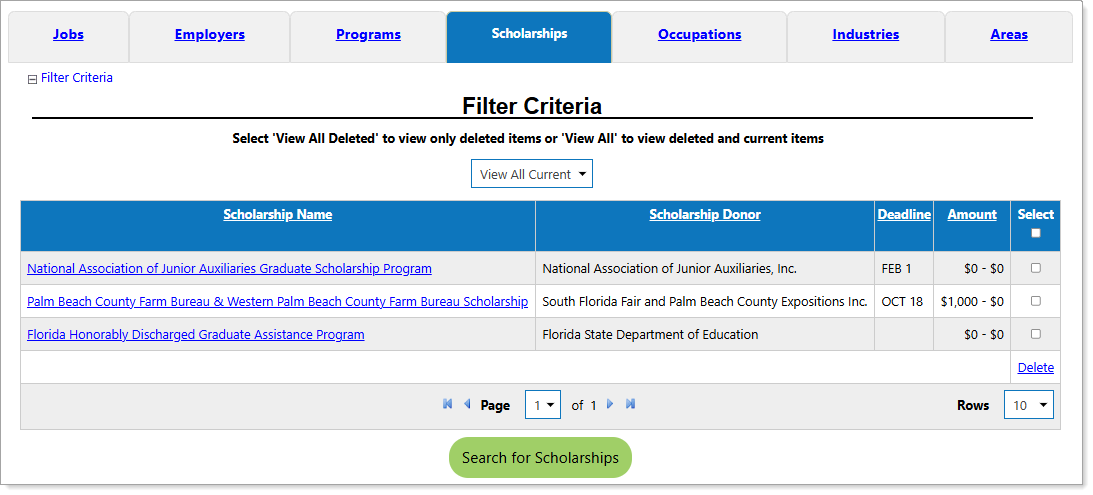
Previously Viewed Scholarships
-
Available information for each award may include the name of the award and a description of the program, the sponsoring organization’s name and description, and the type of award (scholarship, grant, prize, fellowship, or forgivable loan).
-
Also included are special characteristics and award requirements/restrictions, academic year of study for which the award is intended, the dollar value per applicant of the award and the total dollar value of the awards distributed last year, and how many are available and the total number awarded last year, application deadline, any religious affiliation required, ethnicity/heritage requirements, and gender requirement.
Once you view the details for a particular scholarship, the scholarship is saved in your Search History Profile under the Scholarships tab for access later. You can easily navigate there by selecting the following: Header bar > Profile icon > My Individual Profiles > Search History Profile > Scholarships link.
-
You may delete previously searched scholarships by selecting the checkbox in the corresponding Select column and selecting the Delete link. Selecting the Filter Criteria link allows you to filter your search history by current items, deleted items, or to show all previously viewed scholarship results by using the drop-down list choices in the Filter Criteria section.
Compare the Cost of Living in Different Areas
Explore Financial Literacy Resources
Explore WIOA-Eligible Training Programs
Find Internship, Apprenticeship, and On-the-Job Training Opportunities
Research Training/Education Programs
Investigate Training/Education Providers and Schools
Investigate Online Learning Resources