
 Left Navigation Menu












Work with Existing Résumés
Overview
The Résumés tab of your Employment Plan Profile contains all your active, inactive, and deleted résumés. From here you can perform a variety of tasks, including setting the online status, copying, editing, deleting, and more.
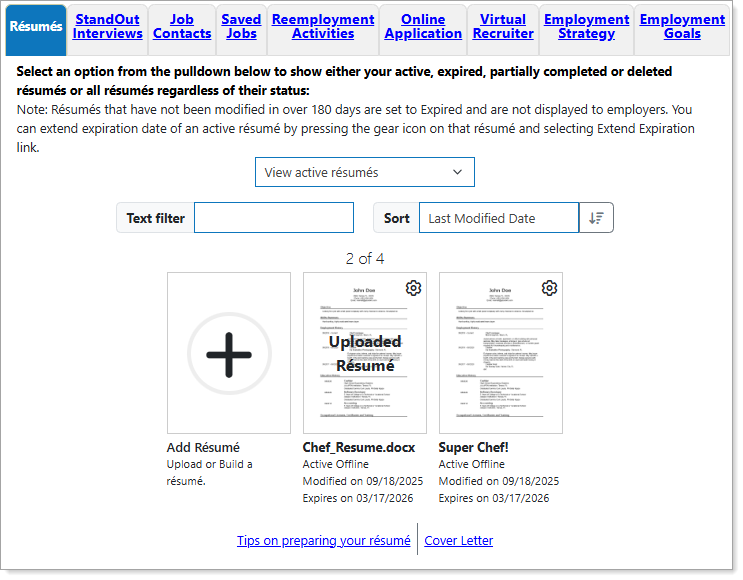
Employment Plan Profile — Résumés Tab
Where to Find This Feature
-
Top menu bar > Résumé icon > Résumé Manager button
-
Left navigation menu > Quick Menu > Résumé Builder
-
My Dashboard > Widgets > Job Seeker Services widget > Résumé Builder link
-
Directory of Services tab > Services for Individuals > Job Seeker Services icon > Résumé Builder icon
Steps to Manage Your Résumés
Your site may display different options from those shown here.
On the Résumés tab, you can perform the following actions:
| To... | Do This: |
|---|---|
| Choose résumés to display | Use the drop-down list to view all, active, expired, partially complete, and deleted résumés. See Manage Expired Résumés for information on reactivating your expired résumés. |
| Filter the list | Enter a keyword in the Text filter field to limit the display to résumé titles with that word in the title. |
| Change the sort order | Select Résumé Title or Last Modified Date from the Sort drop-down list, and use the arrow button for ascending or descending order. |
| Create a new résumé | Select the Add Résumé thumbnail to launch the Résumé Builder. See Manage Your Résumés for details. |
| View résumé details | Select the thumbnail of the résumé you wish to view. Your résumé displays along with a Suggested Jobs Based on Your Résumé section below it, displaying positions in which you may be interested. |
| Make your résumé visible to employers | Select the résumé you wish to make visible. Your résumé displays. Select the Offline button to change the Résumé Accessibility setting. See Make a Résumé Visible to Employers for details. |
| Access options to manage your résumés |
Select the gear icon on a thumbnail to display links for performing a variety of actions:
|
| View information on résumé best practices | Select the Tips on preparing your résumé link. |
| Create and manage cover letters you can use in a job application | Select the Cover Letter link. See Manage Your Letters for details. |
About Résumé Details
When viewing résumé details on the Résumé Builder page, there are a couple of unique features available to you to help with navigating and managing the page.
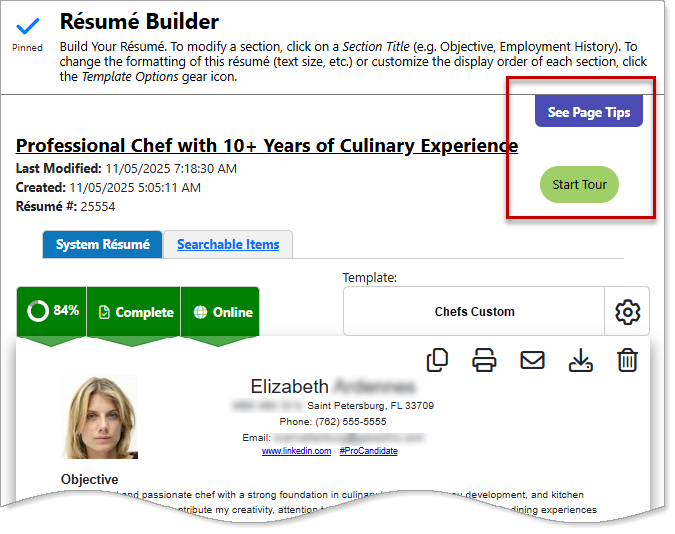
Résumé Builder — Résumé Details
-
To see the basic steps needed to get your résumé online, select the See Page Tips tab at the top of the page.
-
To view a detailed walk-through of all the steps needed to complete your résumé and put it online, select the Start Tour button. The tour takes you through the sections of your résumé with a brief explanation of each and provides an excellent overview of what you can do on the page.