
 Left Navigation Menu












Manage Expired Résumés
Overview
Résumés that have not been modified in over (system set; normally 180) days are set to ‘Expired’ and are not displayed to employers. You can reactivate expired résumés, as they can still be used as a starting point for another résumé.
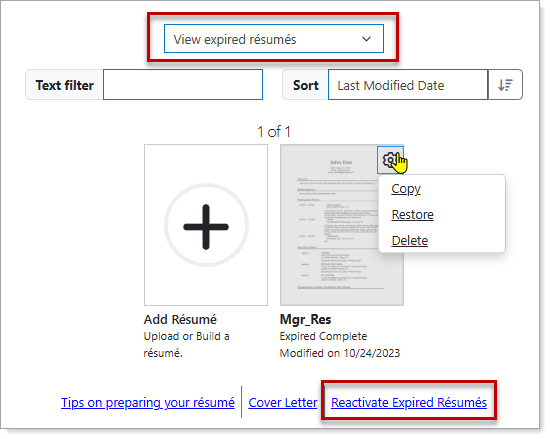
Résumé Builder — Managing Expired Résumés
Where to Find This Feature
-
Top menu bar > Résumé icon > Résumé Manager button
-
Left navigation menu > Quick Menu > Résumé Builder
-
My Dashboard > Widgets > Job Seeker Services widget > Résumé Builder link
-
Directory of Services tab > Services for Individuals > Job Seeker Services icon > Résumé Builder icon
Steps to Manage Your Expired Résumés
Your site may display different options from those shown here.
-
Select View expired résumés from the drop-down list to view résumés that aged past the number of days set in the system.
-
Select the gear icon on the desired résumé thumbnail icon to display a drop-down list of available options:
-
Copy — Use the expired résumé as a starting point for a new résumé. See Copy a Résumé for details.
-
Restore — Reactivates the résumé with an 'Offline' status. You can review/update the information and set it to 'Online' so that employers and recruiters can find you. See Make a Résumé Visible to Employers for details.
-
Delete — Moves the résumé to the Deleted Résumés list. See Delete a Résumé for details.
-
-
To restore all the expired résumés in the list, select the Reactivate Expired Résumés link.
For active résumés, you can extend the expiration date at any time. The drop-down options include an Extend Expiration link that resets the expiration date to the system-set number of days (180) from the current date.