
 Left Navigation Menu












Improve a Résumé's Score
Overview
Your Résumé Score helps you understand how well your résumé aligns with industry best practices. Employers and applicant tracking systems (ATS) often screen résumés based on structure, content, and format before a human ever sees them. By improving your Résumé Score, you increase the likelihood of your résumé being noticed, shortlisted, and ultimately landing interviews for you.
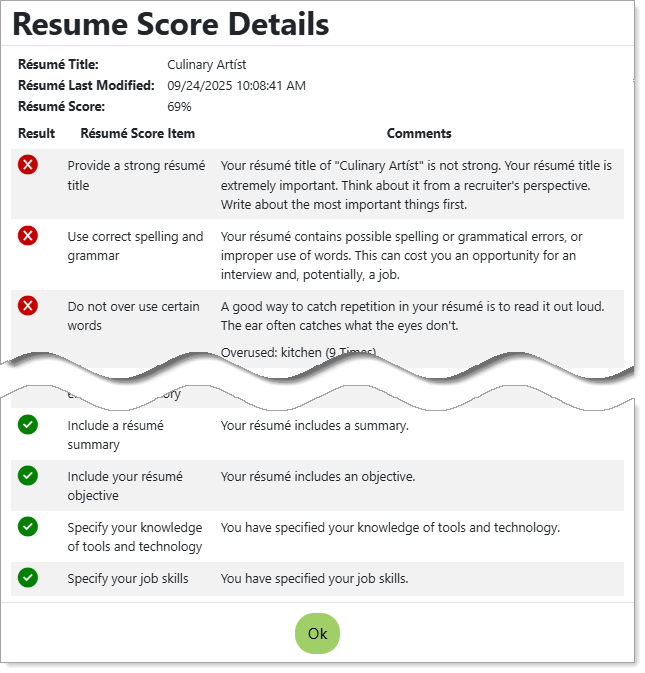
Résumé Score Details Page
Where to Find This Feature
-
Top menu bar > Résumé icon > Résumé Manager button
-
Left navigation menu > Quick Menu > Résumé Builder
-
My Dashboard > Widgets > Job Seeker Services widget > Résumé Builder link
-
Directory of Services tab > Services for Individuals > Job Seeker Services icon > Résumé Builder icon
Steps to Improve Your Résumé Score
Your site may display different options from those shown here.
-
Review details about your current résumé's score in two ways:
-
Select the gear icon on the thumbnail for the desired résumé and choose the Score link.
-
Select the résumé thumbnail icon and then select the résumé score tab at the top left. In the drop-down information box, select the View the areas that could improve your score here link.
Either method displays the Résumé Score Details page, which lists all of the items, parameters, and specifications that must be met to bring your résumé score to 100%. The top of the list includes items that require attention, marked by a red icon with an "X." At the bottom are your résumé items that meet specifications, marked by a green icon with a checkmark.
-
-
Make a note of the items that need improvement and what the requirements are for each in the Comments column.
-
Select the Ok button to close the page and then edit your résumé as needed to bring it in line with industry standards. See Edit a Résumé for details.
Understanding the Icons
There are three types of warning icons that may display on the résumé preview page to indicate if a résumé section or Employer Searchable Item has no entries, or if it may need more information to achieve a higher résumé score:
Red Octagon  — Indicates that there is no entry for that section, and that section is required in order to put your résumé online.
Yellow Triangle  — Indicates that there is no entry for that section.
Yellow Lightbulb  — Indicates a negative status that is lowering the total résumé score. Select the icon to display the Resume Score Details page, showing comments for all résumé score items.