
 Left Navigation Menu












Configure Your Dashboard Sections and Widgets
Overview
Your dashboard is highly customizable in terms of what sections display. In the Widgets section, you can change which widgets display and how they are arranged so your information appears exactly as you want it.
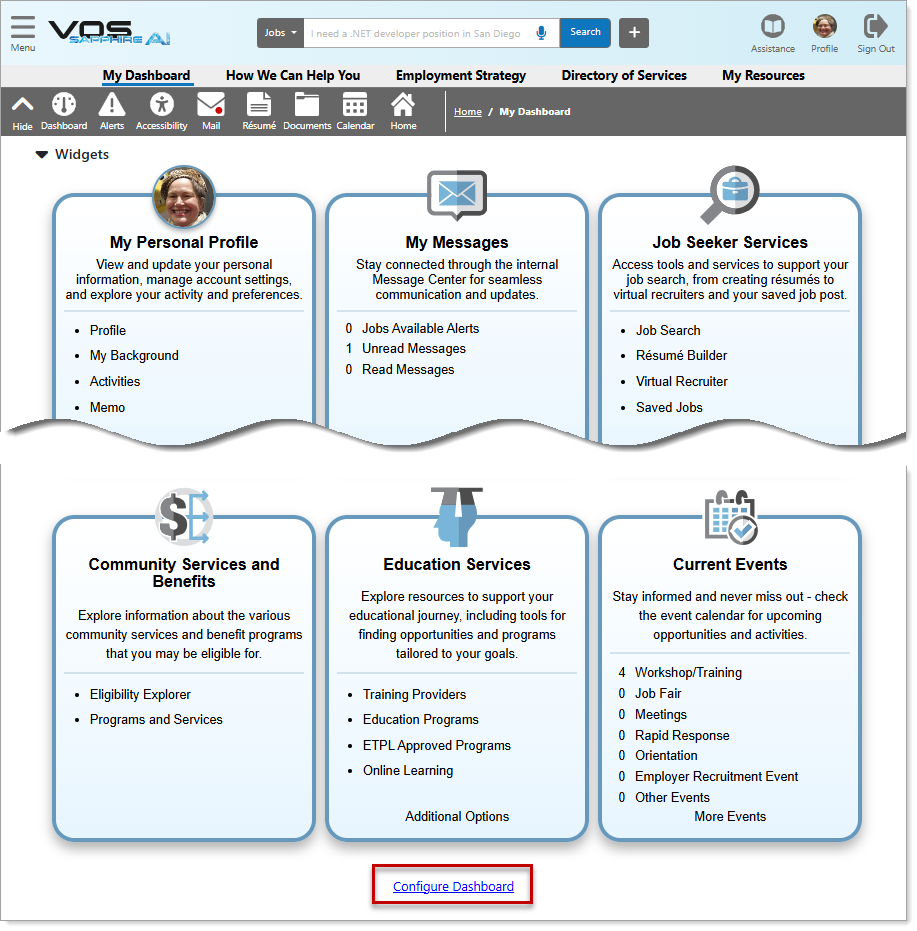
My Dashboard Showing a Customized Presentation and the Configure Dashboard Link
Where to Find This Feature
-
Top menu bar > Dashboard icon > Widgets section > Configure Dashboard link
-
Dashboard > Widgets section > Configure Dashboard link
Steps to Customize Your Dashboard
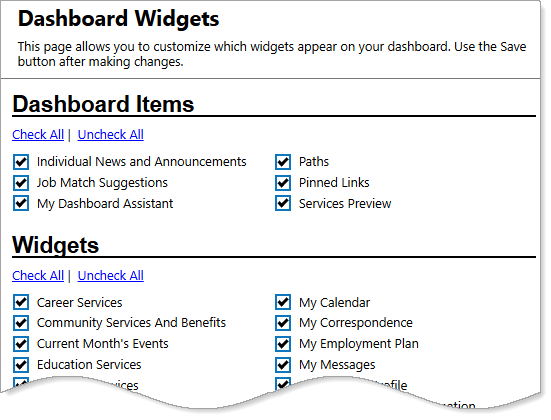
Dashboard Widgets Page with Dashboard Items and Widgets Options
-
To select which sections appear on your dashboard, check the desired boxes in the Dashboard Items section.
-
In the Widgets section, check boxes for the widgets you want displayed on your dashboard. You can also use the Check All and Uncheck All links to select all or deselect all, as desired.
The specific widgets available to you may vary depending on your site setup.
-
Select the Save button at the bottom of the page. The dashboard displays with your changes made to displayed items and widgets.
-
To expand or collapse items on the dashboard, select the arrow icon next to the section title. Your settings are retained until you change them again, even after logging out.
Steps to Customize Your Widget Display
You must first save any changes you make to the selected dashboard widgets in the top section of the page before you can rearrange them as described below.
-
To rearrange the widgets directly on your dashboard, click, hold, and drag and drop them to the desired location.
OR...
-
To rearrange the widgets using the keyboard, select the Configure Dashboard link at the bottom of the page to display the Dashboard Widgets page.
-
Scroll down to the Dashboard Widget Position Layout, by Keyboard section.
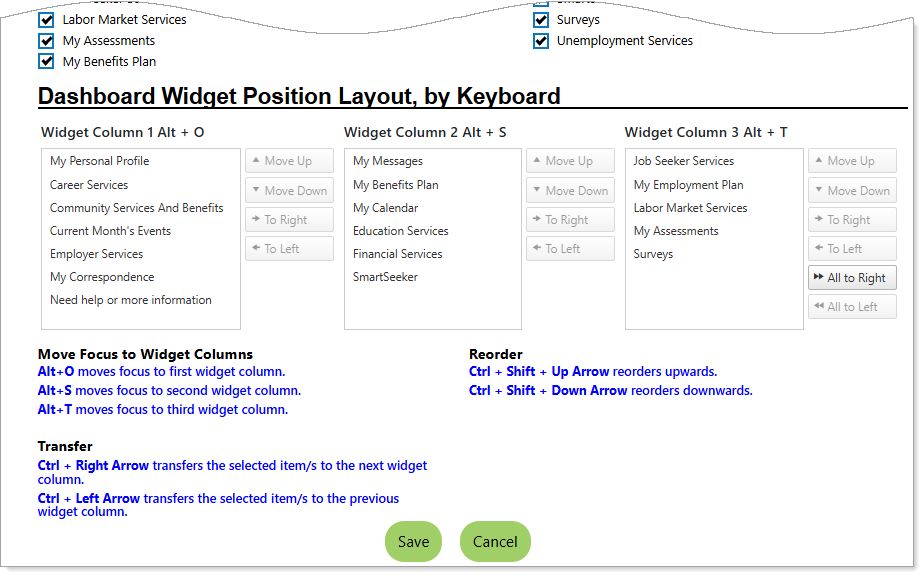
Dashboard Widgets Page – Dashboard Widget Position Layout, by Keyboard Section
-
Highlight the desired widget name, and use the buttons to move the widget position up or down within the column or left and right between the columns (see figure above).
OR...
Use the keyboard controls identified in the blue text instructions on the page to select and move widgets up or down in a column, or to move them to the next or previous widget column.
-
When all widgets are arranged in the columns as desired, select the Save button. The dashboard redisplays with the selected widgets and their new positions in the Widgets section.
Tips
Arrange your widgets by how often you visit that area of the system or according to the degree of importance. For example, if you want to see how many unread messages you have immediately upon signing in, you can place the My Messages widget at the top of the section. Or, if you do not access Labor Market Services frequently, you can relocate the widget to the bottom or remove it altogether.