
 Left Navigation Menu












Choose Your Preferred Language
Overview
For sites that are translated into languages other than English (United States), you can change the language for your site (system pages, menus, buttons, etc.) by selecting from a drop-down list of available choices. You can also use Google Translate to translate the site into a wide selection of other languages.
Where to Find This Feature
-
Site splash page > Header bar > Language drop-down list
-
Site splash page > Sign in/Register button > Language drop-down list
-
Top menu bar > Accessibility icon > Languages button
-
Footer bar > Settings > Languages link
Steps to Change the Language Before Login
-
Select your language choice from the Language drop-down list in the header bar of the home page. The page instantly refreshes in your chosen language.
-
To use Google Translate, select Other Language, and then select from Google's language drop-down list.
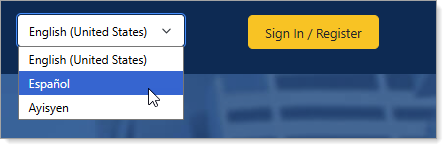
Select Language Drop-down List on Sample Home Page
Steps to Change the Language After Login
-
Select the desired language from the Languages drop-down list on the User Preferences page.
-
Select the Save button. The page redisplays in the chosen language.
-
To reset the site language to English, select the Reset Language link.
Use Google Translate Option
-
If you select a language other than English, a pop-up window appears asking if you want to use Google Translate. Click on the ellipsis to make a selection.
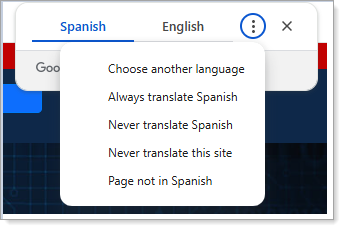
Google Translate Selection