
 Left Navigation Menu












Set Your Profile Folder Tree Preference
Overview
The system stores the information in your Individual Profile in clearly labeled tab pages and folders, which are organized into an expandable "tree" structure. You can choose whether folders should close automatically when accessing a page, which gives you more vertical screen space in which to work.
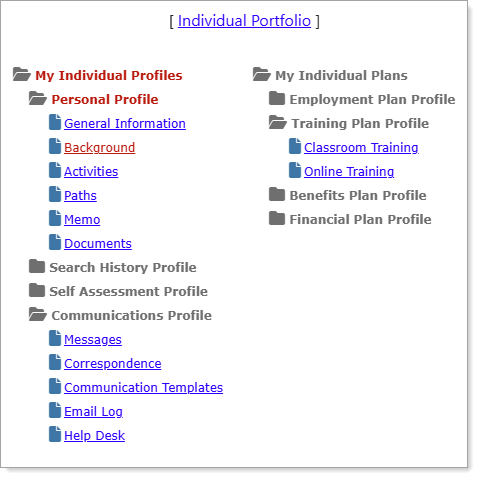
Partially Expanded Folder Trees
Where to Find This Feature
-
Top menu bar > Accessibility icon > Page Preferences button
-
Left navigation menu > Other Services > Assistance Center > My Preferences
-
Dashboard > Directory of Services tab > Other Services > Assistance Center > My Preferences
-
Footer bar > Settings > Page Preferences link
Steps to Change Folder Tree Automatic Close
-
From the Folder Trees section of the User Preferences page, select one of the following options:
-
To maintain any open folders in their expanded state when you select tab page link, select Disable Automatic Close (default).
-
To have the entire folder tree collapse automatically up to the highest-level folder when you select a tab page link, select Enable Automatic Close.
-
-
Select the Save button.