
 Left Navigation Menu












Set Accessibility Options
Overview
The Accessibility Controls panel lets you set your display preferences and save them for easier viewing of text and controls in the system.
Where to Find This Feature
-
Top menu bar > Accessibility icon
About Available Accessibility Options
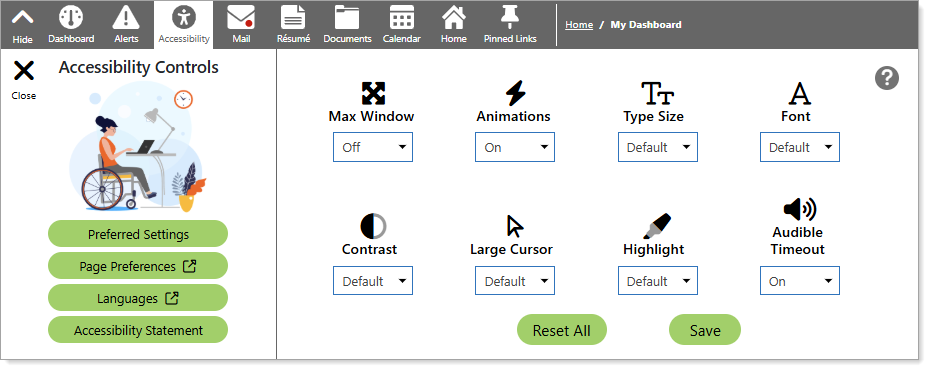
Accessibility Panel
The available settings for the system accessibility options are:
-
Max Window – Maximizes the window size to full screen (default is off).
-
Animations – Sets website visual motions or transitions (default is on).
-
Type Size – Sets point sizes: Default, Medium, Large.
-
Font – Sets the character spacing (space in between letters of words) to Default (normal) or Improved (increased spacing) or to different fonts and bold settings.
-
Contrast – Changes screen display colors; select from Default (gray text on white background), Dark (white text on black background), Light (gray text on white background and removes colored banners and borders), Yellow (yellow text on black background), or Inverted (changes all colors to their complementary opposite on the color wheel: white > black, black/gray > white, or, for example, blue > orange or green > red).
-
Large Cursor - Sets the cursor size to Default (small white arrow with black outline), Dark (large black arrow), or Light (large white arrow with black outline).
-
Highlight – Highlights elements of the screen display; select from Default (no highlighting), Links (highlights all links in a complementary color to border and banner colors), Headers (highlights headings in a complementary color to border and banner colors), or Both (highlights links and headers in a complementary color to border and banner colors).
-
Audible Timeout – Sounds an audible tone when the system has timed out (default).
Steps to Set Accessibility Options
-
From the Accessibility Controls panel, select the drop-down list for the desired accessibility option.
-
Highlight one of the choices provided.
- Select the Save button.
- To switch back to all default settings, select the Reset All button.