
 Left Navigation Menu












Job Search Results Page Overview
Overview
When you use the Quick, Standard, Advanced, Employer, Education, or Résumé job search tabs, your results appear in a job card view on the Job Search Results page. On this page, you can save jobs to your Saved Jobs list, apply to jobs, share job postings, and filter or sort the list of results to help you find the opportunities that best match your needs.
Job Search Results Page
Where to Find This Feature
-
Header bar > Search field
-
My Dashboard > Widgets > Job Seeker Services widget > Job Search
-
Left navigation menu > Quick Menu > Job Search
Filtering and Sorting Options
Your site may display different options from those shown here.
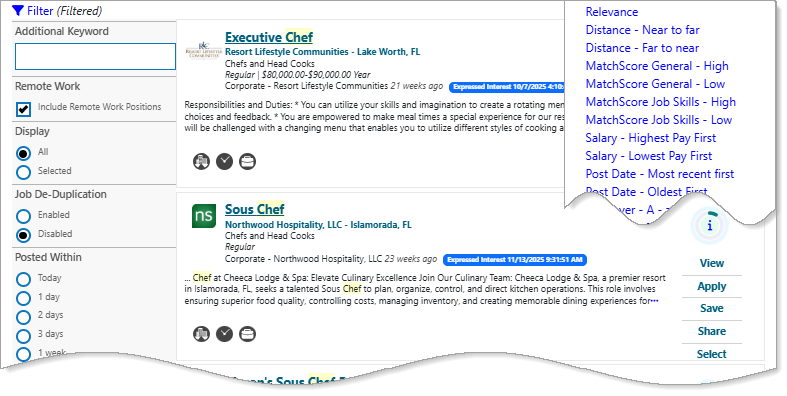
The Filter and Sort features on the Job Search Results page help you quickly find the most relevant positions that match your skills, preferences, and goals. Filtering and sorting results saves time and ensures that you focus on the best opportunities first. Use the Filter link (top left) and the Sort link (top right) to narrow or organize your results (the list updates automatically as you make selections).
Some of the most useful filters for narrowing your job search results are listed below:
|
Filter |
Description |
|---|---|
|
Additional Keyword |
Enter an additional keyword to narrow your keyword search. |
|
Remote Work |
Selecting this check box includes remote jobs in the results list. |
| Display | Selecting this check box will show only the jobs where you chose Select on the job card's mini action menu (Select changes to Selected). This creates a short list of your chosen jobs, instead of displaying the full set of job search results. |
| Job De-Duplication |
Select Enabled to remove jobs from the search results list that are duplicates of other jobs on the list. The page refreshes to display the revised search results. You can see the number of jobs found update at the top of the page as you switch between the Enabled and Disabled selections. |
| Posted Within |
Select an option button to filter the search results according to the posting date time frame, from just Today to Anytime. |
| Work Site Options | Filter opportunities by onsite jobs, or those offering remote/telework options. |
| Employer | Select any of the check boxes to filter the search results so you only see jobs from the employers you’re interested in. If you want to include all employers, you can choose Select All. |
| Occupation | Select any of the check boxes to filter the search results so you only see jobs in the occupations you’re interested in. If you want to include all occupations, you can choose Select All. |
| Salary | Job postings advertising a salary are displayed here with the number of postings for each salary range. You can filter the results by salary, or select Any. |
| Education | Select any of the check boxes to filter the search results so you only see jobs that require a specific level of education. If you want to include all education levels, you can choose Select All. |
| Source | Filters results by the job posting source (e.g., private job board, job distributor, preferred employer, etc.). Preferred Employers are registered, vetted, and post jobs directly in this system. A gold star above the action menu on the job cards indicates a preferred employer or internal job. |
| Job Type | Select any of the check boxes to filter the search results so you only see jobs that match a specific job type. If you want to include all job types, you can choose Select All. |
Some of the most useful sort options for organizing your job search results are listed below:
|
Sort by |
Description |
|---|---|
|
Relevance |
The search default is to sort by keyword relevance. This lists jobs that most closely match all criteria you entered. |
|
Distance - Near to Far/Far to Near |
Lists jobs closest to your location first or jobs furthest to your location first. |
| MatchScore General - High/Low |
Lists jobs with highest MatchScore (General) first or jobs with lowest MatchScore (General) first. |
| MatchScore Job Skills - High/Low |
Lists jobs with highest MatchScore (Job Skills) first or jobs with lowest MatchScore (Job Skills) first. |
| Salary - Highest Pay First/Lowest Pay First | Lists highest paying jobs first or lowest paying jobs first. |
| Post Date - Most Recent First/Oldest First | Lists newest jobs first or oldest jobs first. |
| Employer - A-Z/Z-A | Lists jobs by employer name, either alphabetically from A to Z or in reverse order from Z to A. |
| Job Title - A-Z/Z-A | Lists jobs either alphabetically from A to Z or in reverse order from Z to A. |
| Occupation - A-Z-Z/A | Lists jobs by occupation, either alphabetically from A to Z or in reverse order from Z to A. |
| Source - A-Z/Z-A | Lists jobs by source, either alphabetically from A to Z or in reverse order from Z to A. |
| Job ID - 0-1/1-0 | Lists jobs by job ID, either in ascending order (0 to 1) or descending order (1 to 0). |
Job Card

Job Card on Job Search Results Page
Each job card displays the key details you need to quickly understand a job. This layout makes it easier to scan opportunities and focus on the roles that best fit your needs. From top to bottom, left to right, the elements of a job card are:
|
Element |
Description |
|---|---|
|
Employer logo |
Displays if it is provided by employer. |
|
Job title |
Clicking on this link will take you to the Job Details page. |
| Employer name |
Displays if it is shared by employer. |
|
Job type and salary |
Indicates type of employment (regular, temporary, seasonal) and salary if its shared by employer. |
| Job posting source and time frame when posted |
Indicates if the job source is a private job board, job distributor, preferred employer, etc. Preferred Employers are registered and post jobs directly in this system. Displays when the job was posted (number of days or weeks ago). |
| Job description | Description with search keyword highlighted (if keyword was specified as criteria). |
| Icons indicating job requirements and properties |
The icons in this section provide a quick view of the requirements and properties for the selected job. Hover over certain icons to see a tooltip describing the requirement. Selecting certain icons takes you to the corresponding section. Quickly review aspects of the job such as: onsite/remote, degree requirements, day/night shift, hours per week, or full or part-time work. |
| Match Score icon | The rings in this graph show how closely you match different job requirements. Selecting the "i" at the center of this icon flips the job card to show an overview of your Match Scores. Select the Learn more about MatchScores link to view the How I Match Up page. See How Well Do You Match Up to a Job Listing? for details. |
| Preferred employer/internal job indicator |
Displays as a gold star on the right side of the Match Score icon. See Job Details Page Overview for details. |
| Mini action menu |
|
You can change your job search criteria by selecting the Change job search criteria link at the bottom of the page. You can also save the job search as a Virtual Recruiter by selecting the Save as Virtual Recruiter button. See Save Search Criteria as an Automated Job Alert (Virtual Recruiter) for details.