
 Left Navigation Menu












Save Search Criteria as an Automated Job Alert (Virtual Recruiter)
Overview
The Virtual Recruiter tool lets you create job searches, called “alerts,” and save them in the Virtual Recruiter. For each alert, you can choose how often, and when, to run the searches and how you want to be notified. The Virtual Recruiter page displays your saved job searches or alerts. The system runs these searches automatically and, when it finds jobs that match your criteria, sends a notification by email, internal message, or text message.
Using the Virtual Recruiter saves you time and ensures you never miss new job opportunities that match your interests. Instead of manually searching every day, you automatically receive updates about new openings as soon as they become available.
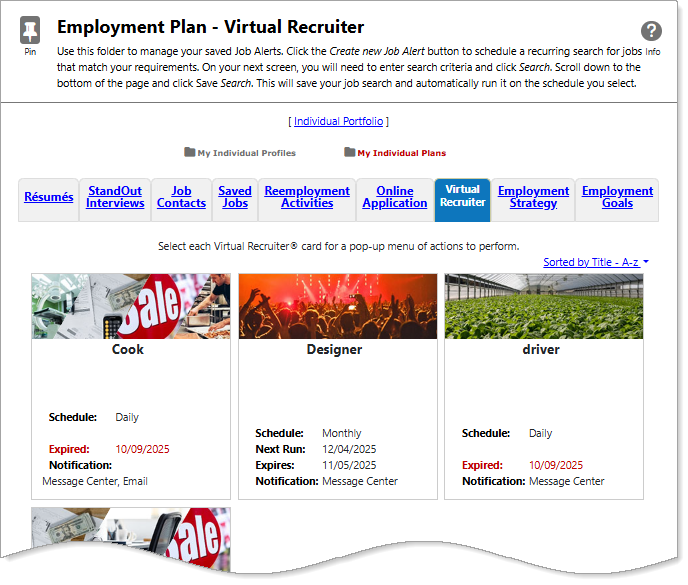
Virtual Recruiter Tab
Where to Find This Feature
-
Header bar > Profile icon > My Individual Plans folder > Employment Plan Profile folder > Virtual Recruiter tab
-
Top menu bar > Résumé icon > Virtual Recruiter button
-
Left navigation menu > Services for Individuals > Job Seeker Services > Virtual Recruiter
-
My Dashboard > Widgets > Job Seeker Services widget > Virtual Recruiter link
Steps to Create a New Virtual Recruiter
Your site may display different options from those shown here.
There are two ways to create Virtual Recruiter job searches or alerts. You can create them from the Virtual Recruiter tab of your Employment Plan Profile or from the Job Search Results page. Each are explained below.
Virtual Recruiter Tab
-
Navigate to the Virtual Recruiter tab of your Employment Plan Profile.
-
Select the Create New Job Alert button to create a new Virtual Recruiter job search.
-
Enter criteria into the search fields and perform a job search.
-
Continue steps below under Save Job Search Results.
Save Job Search Results
When you search for a job, the system displays a Save as Virtual Recruiter button at the bottom of the Search Results page. When you select the Save as Virtual Recruiter button, your search criteria are saved so the system can automatically rerun the search at intervals that you choose.
After selecting the Save as Virtual Recruiter button, the Virtual Recruiter Information page displays.
-
Give the Virtual Recruiter alert a name in the Title of Virtual Recruiter Alert field.
-
Select an option from the How often to run drop-down list.
-
Check an option from the Notification method checkboxes. Each time a Virtual Recruiter job search runs, the system sends a notification to the individual through the internal message center.
-
Check the Send Email when no jobs found checkbox to receive emails when the Virtual Recruiter search runs, even if it finds no matching jobs.
-
Enter an expiration date for the alert in the Expires on field.
-
Select the Save button to save the Virtual Recruiter alert. The system saves the alert to your Virtual Recruiter tab.
Manage Alerts
To manage a Virtual Recruiter job search, select the Virtual Recruiter card to display a pop-up menu. Available options include the following:
-
To modify the search settings for an existing Virtual Recruiter alert, select the Edit link. Select the Save button to save the changes.
-
To run the Virtual Recruiter job search, select the Run Now link.
-
To delete a Virtual Recruiter job search, select the Delete link on the action menu. Confirm the deletion by selecting the OK button on the pop-up.
Each time a Virtual Recruiter search runs, it displays only jobs that are new since the last time it ran.