
 Left Navigation Menu












Save Jobs as Favorites
Overview
Saving a job as a favorite helps you keep track of roles that interest you without needing to apply immediately. The Saved Jobs tab under your Employment Plan Profile lists all the positions you save, making it easy to quickly return to listings later, compare opportunities side by side, apply, share job postings, and stay organized during your job search.
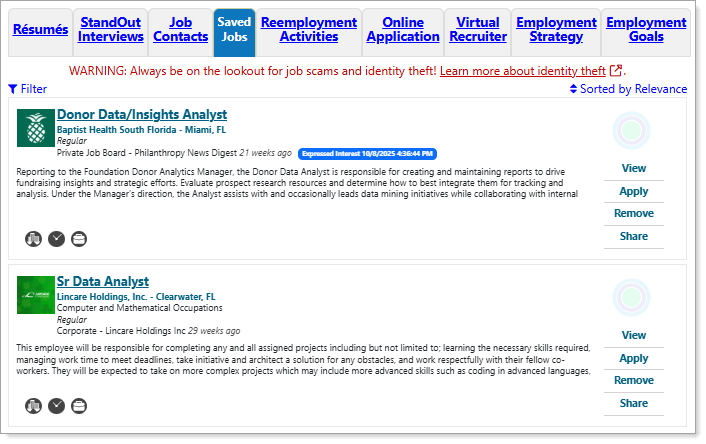
Employment Plan Profile — Saved Jobs Tab
Where to Find This Feature
-
Header bar > Profile > My Individual Plans folder > Employment Plan Profile folder > Saved Jobs tab
-
Top menu bar > Résumé > Saved Jobs button
-
My Dashboard > Widgets > Job Seeker Services > Saved Jobs link
-
Left navigation menu > Services for Individuals > Job Seeker Services > My Saved Jobs
-
Directory of Services > Job Seeker Services > My Saved Jobs
Steps to Save and Manage Jobs
Your site may display different options from those shown here.
Jobs of interest to you can be saved directly from your Job Search results or from the Job Details page:
-
Perform a job search to locate jobs in which you are interested. See Find a Job for details.
-
Do one of the following:
-
Review the search results and select the Save link on the action menu located on the right side of the job listing for the jobs you wish to save.
-
Select the Job Title or View link on the action menu to display the Job Details page, where you can get more information on the position before you decide to save it. Select the heart icon at the top of the page to save the job.
-
-
Select the OK button on the confirmation pop-up alert.
Either method saves the job to the Saved Jobs tab of your Employment Plan Profile. On the Saved Jobs tab, you can perform the following actions:
|
To... |
Do This: |
|---|---|
|
Filter the list |
Select the Filter link above the list on the left to expand the Filter section, where you can select from a variety of filtering options to modify the display. See Filter and Sort Job Search Results for details. |
|
Sort the list |
Select the Sorted by Relevance link above the list on the right. A pop-up appears with a list of options. See Filter and Sort Job Search Results for details. |
| View your Match Scores |
Select the concentric circles icon on the action menu located on the right side of the job listing to see your matching score percentages. Applies to preferred jobs only. You must have previously completed self-assessments and saved key background information in your Personal Profile See How Well Do You Match Up to a Job Listing? for details. |
| View a job listing |
Select the View link on the action menu located on the right side of the job listing. |
| Apply to a job | Select the Apply link on the action menu located on the right side of the job listing. See Apply for Jobs for additional information. |
| Remove a job from your saved jobs list | Select the Remove link on the action menu located on the right side of the job listing. |
| Share the saved job | Select the Share link on the action menu located on the right side of the job listing. See Share Jobs on Social Media and Email for details. |
| Quickly view the job requirements and properties | Icons in the bottom left area of the job listing visually indicate the job requirements and properties. Hover over each icon to see a brief text description. See Job Details Page Overview for details. |