
 Left Navigation Menu












Intelligent Search Results Page
Overview
After running an Intelligent or Skills job search, your results can be viewed in either a Summary or Detailed format. The Summary view offers a quick, high-level look at each job, while the Detailed view provides additional information at a glance. Both views include common controls to help you navigate and manage your results.
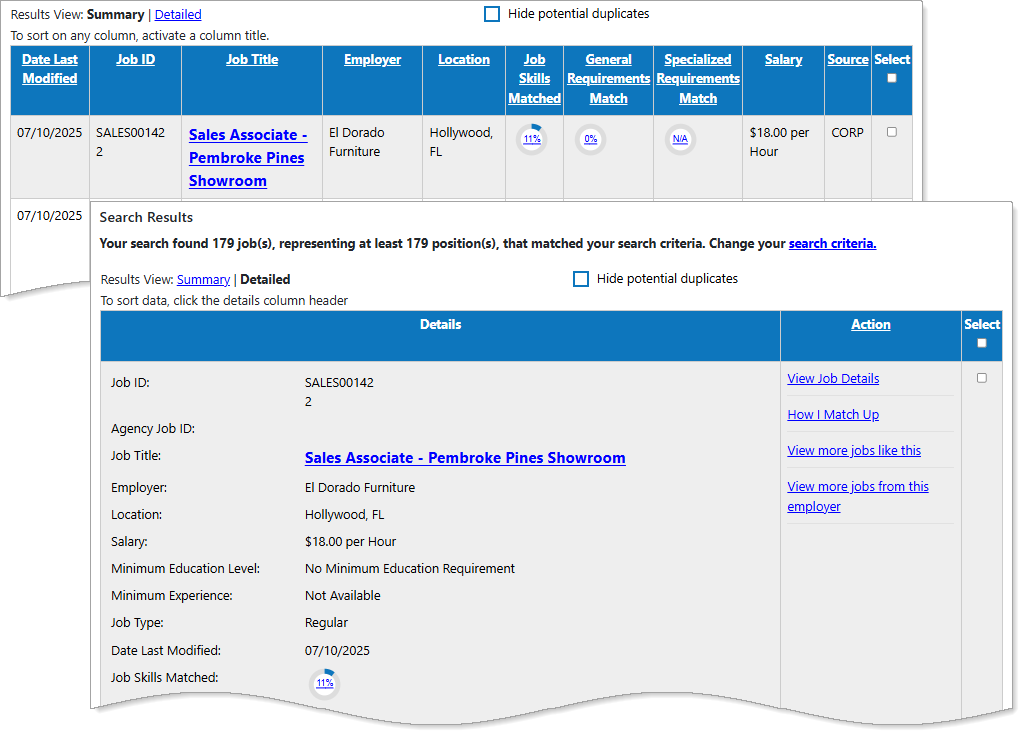
Intelligent Job Search Results Page
Where to Find This Feature
-
Top menu bar > Directory of Services > Services for Individuals > Job Seeker Services > Find Job Openings > Intelligent tab
-
Left navigation menu > Quick Menu > Job Search > Intelligent tab
-
Left navigation menu > Services for Individuals > Job Seeker Services > Find Job Openings > Intelligent tab
-
My Dashboard > Widgets > Job Seeker Services widget > Job Search > Intelligent tab
Navigating Your Intelligent Job Search Results
Your site may display different options from those shown here.
Summary View
After you perform an Intelligent Job Search, this page displays your personalized results. The Summary view, which appears by default, provides a streamlined snapshot of key job information so you can quickly scan and compare multiple opportunities at once. The columns for the Summary view are described below.
|
Column |
Description |
|---|---|
| Job Description | The length of this section and level of detail varies based on what the employer has provided. It may include a list of responsibilities and duties, available shifts, organizational reporting structure, required experience, tools or technologies, etc. If an employer has opted not to provide certain information in the job listing, these sections may be blank or have partial information |
|
Date Last Modified |
The date the job was posted or edited. For Preferred jobs, it shows the last time the employer edited the job; for other jobs, it shows the date listed in the job posting; if no date was listed in the posting, this is the date the job was first advertised. |
|
Job ID |
A system-generated unique identifier for the job listing that you can search by. |
|
Job Title |
A short job title given to the position by whoever created the job posting. Selecting this link displays the Job Details page. See Job Details Page Overview for a description. |
| Employer |
The name of the employer that posted the job. If the employer chose to keep its name private, Confidential appears and Suppressed appears if you are required to contact workforce staff to apply for the job. |
| Location | The work site location of the job (e.g., city and state). |
| Requirements Match |
Three columns display circled percentages showing how closely you match the job requirements based on your job skills and background information.
Select any of the match score links to open the How I Match Up page. See How Well Do You Match Up to a Job Listing? for details. |
| Salary | The pay rate or pay range for the job, if posted. Not Available displays if the salary was not posted in the job listing or if it is hidden by the employer. |
| Source | From where the job listing was obtained; Preferred Employers are marked with a gold star. A legend at the bottom of the listed jobs defines all abbreviations used in this column. |
| Select | Used to select jobs to display their work site locations on a map. Check the boxes for the desired jobs, and then use the Map link at the bottom of the Select column to open a separate Google Map window with map points for the job work site locations. The checkbox is disabled for suppressed jobs. |
Detailed View
The Detailed view offers expanded information for each job, giving you deeper insight into the role, requirements, and fit before deciding to explore further. In this view, each job listing provides additional links for related searches. Columns and fields unique to the Detailed view are described below (see Summary View for repeated columns and fields).
|
Column |
Information and Links |
|---|---|
| Details |
|
| Action |
|
Common Controls for Summary and Detailed Views
The following controls let you change the display of the job listings in either view and help you sort, filter, and manage your search results efficiently.
|
To... |
Do This: |
|---|---|
|
Switch to Detailed or Summary view |
Select the Summary or Detailed link above left of the table. |
|
Hide potential duplicate listings |
Select the Hide potential duplicates checkbox. This removes jobs from the search results that are probably duplicates of other jobs on the list. The page refreshes to display the revised search results and notes the number of jobs hidden. You can determine how the system checks for potential duplicate jobs by selecting the Set duplicate definition link. A list of checkbox options displays below, allowing you to determine which items you want the system to use in checking for duplicates. Choose as desired and then select the Set Definition button. Select the Set duplicate definition link again to hide the fields.
|
|
Sort the results |
Select any column heading to sort by that column; select it again to reverse the order. |
| Change the search criteria | Select the search criteria link above the table or the Change job search criteria link below the table to return to the search criteria page. |
| Change number of rows displayed | Select a number from the Rows drop-down list at the lower right of the table. |
| Move through the pages in the list |
|
| Save the search criteria for automated searches | Select the Save Search button in the Save this Job Search section at the bottom of the page to save the criteria as a Virtual Recruiter alert. See Save Search Criteria as an Automated Job Alert (Virtual Recruiter) for details. |