
 Left Navigation Menu












Filter and Sort Job Search Results
Overview
The Filter and Sort features on a Job Search Results page help you quickly find the most relevant positions that match your skills, preferences, and goals. It saves time, improves application quality, and ensures you focus on the best opportunities first.
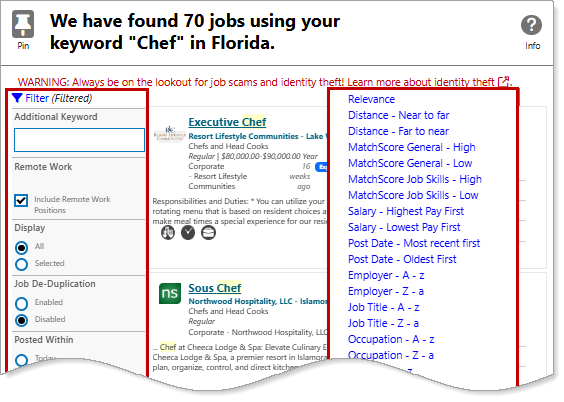
Job Search Results page — Filter and Sort Features
Where to Find This Feature
-
Top Menu Bar > Search Field > Job Search Results
-
My Dashboard > Widgets > Job Seeker Services > Job Search > Job Search Results
-
Left navigation menu > Quick Menu > Job Search > Job Search Results
Filtering and Sorting Options
Your site may display different options from those shown here.
After performing a job search, a list of results appears. Use the Filter link (top left) or the Sort link (top right) to narrow or organize your results (the list updates automatically as you make selections).
Some of the most useful filters for narrowing your job search results:
|
Filter |
Description |
|---|---|
|
Additional Keyword |
Enter an additional keyword to narrow your keyword search. |
|
Remote Work |
Selecting this box will include remote jobs in the results list. |
| Job De-Duplication |
Select Enabled to remove jobs from the search results list that are duplicates of other jobs on the list. The system will refresh to display the revised search results. You can see the number of jobs update at the top of the page as you switch between the Enabled and Disabled selections. |
| Posted Within |
This selection allows you to sort job postings by most recent or older. |
| Work Site Options | Filter opportunities by onsite jobs, or those offering remote/telework options. |
| Salary | Job postings advertising a salary are displayed here with the number of postings for each salary range. You can filter the results by salary, or select Any. |
| Source | Filters results by the job posting source (e.g., private job board, job distributor, preferred employer. Preferred Employers are registered, vetted, and post jobs directly in this system. A gold star to the left of the employer's name (in the job search results cards) indicates a preferred employer or internal job. |
Some of the most useful sort options for organizing your job search results:
|
Sort by |
Description |
|---|---|
|
Relevance |
The search default is to sort by keyword relevance. This lists jobs that closely match all criteria you entered. |
|
Distance - Near to Far |
Lists jobs closest to your location first. |
| MatchScore General - High |
Lists jobs with highest MatchScore (General) first. |
| MatchScore Job Skills - High |
Lists jobs with highest MatchScore (Job Skills) first. |
| Salary - Highest Pay First | Lists highest paying jobs first. |
| Post Date - Most Recent First | Lists newest jobs first. |