
 Left Navigation Menu












Share Jobs on Social Media and Email
Overview
You can easily share jobs you find in the system on social media or by email, helping your friends or colleagues discover opportunities that might be a great fit. Sharing directly from the system makes it simple to spread the word and grow your professional network.
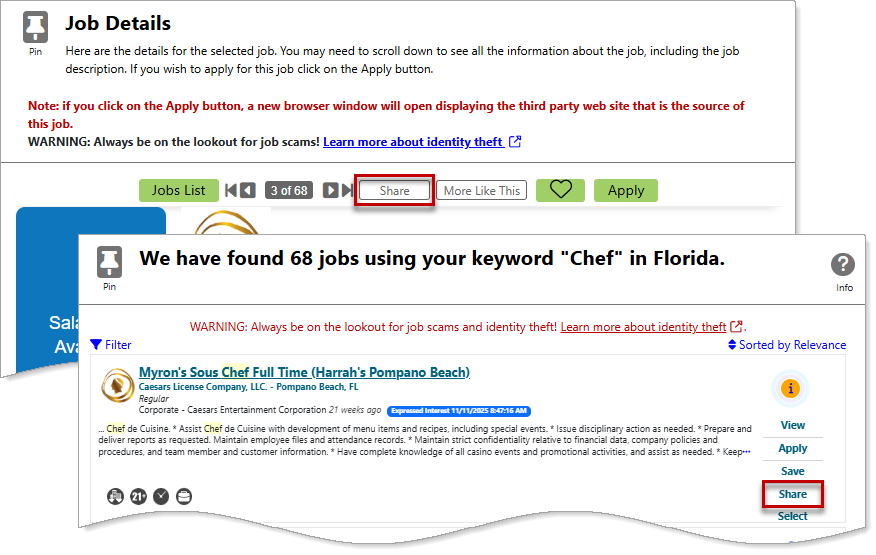
Share Job From a Job Details Page and a Job Search Results Page
Where to Find This Feature
-
Top menu bar > Search field > Job Search Results page > Share option
-
Top menu bar > Search field > Job Search Results page > Job title link > Job Details page > Share button
-
Left navigation menu > Quick Menu > Job Search > Job Search Results page > Share option
-
Left navigation menu > Quick Menu > Job Search > Job Search Results page > Job title link > Job Details page > Share button
-
My Dashboard > Widgets > Job Seeker Services widget > Job Search link > Job Search Results page > Share option
-
My Dashboard > Widgets > Job Seeker Services widget > Job Search link > Job title link > Job Details > Share button
Steps to Share a Job
Your site may display different options from those shown here.
-
To share a job listing, do one of the following:
-
On the Job Search Results page, select the Share option in the mini actions menu on the right side of the job card. A Share this Job pop-up window appears.
-
On the Job Details page, select the Share button at the top of the page. A Share this Job pop-up window appears.
-
-
Choose the corresponding link for the social media site or the email option you’d like to use to share the job listing.
-
If you select a social media option, a new window opens for that site where you can log in and complete the steps to share the job.
-
If you select the email option, fields appear for you to enter an email address, along with a prefilled message that you can edit before sending. Select the Send Message button to send the email.
-