













Job Details Page Overview
Overview
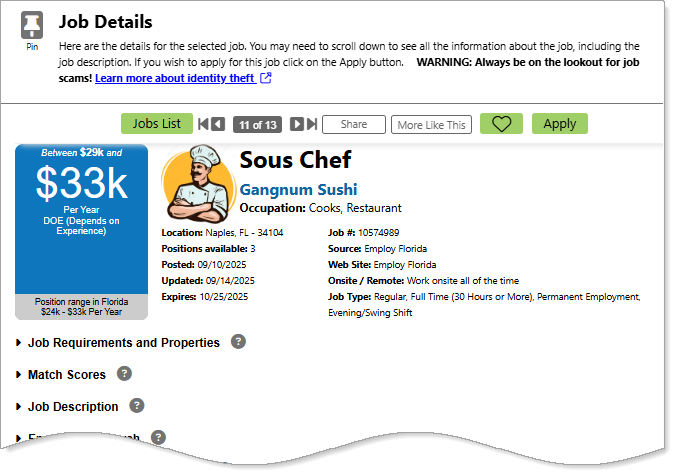
After completing a job search, select any Job Title that interests you to open the Job Details page. From this page, you can view more information about the job and apply to it. Reviewing this page helps you decide whether a job matches your goals, qualifications, and interests before applying.
Job Details Page
Where to Find This Feature
-
Header bar > Search field > [job title link] or View option
-
Left navigation menu > Quick Menu > Job Search > [job title link] or View option
-
My Dashboard > Widgets > Job Seeker Services widget > Job Search link > [job title link] or View option
-
My Dashboard > Widgets > Job Seeker Services widget > Saved Jobs link > [job title link] or View option
Guide to Page Components
Your site may display different options from those shown here.
Action Button Options
At the top of the Job Details page are action buttons that let you navigate between jobs, save favorites, apply to job listings, and more. These tools make it easier to manage and explore job opportunities efficiently.

Job Order Action Buttons
|
To... |
Do This: |
|---|---|
|
Return to the jobs list |
Select the Jobs List button. |
|
View the next or previous job in the jobs list |
Select the Next Job or Previous Job buttons. |
|
View the first or last job in the jobs list |
Select the First Job or Last Job buttons. |
| Share the job listing on one of your social media accounts or via email | Select the Share button. See Share Jobs on Social Media and Email for details. |
| See a list of similar jobs (displays a search results page with jobs having the same occupation and city/location as this one) | Select the More Like This button. |
| Save the job | Select the Save this Job (heart) button. See Save Jobs as Favorites for details. |
| Apply to this job | Select the Apply button. See Apply for Jobs for details. |
Job Information Fields
Below the action buttons, overview information for the job posting displays such as salary, job title, company name, and location.
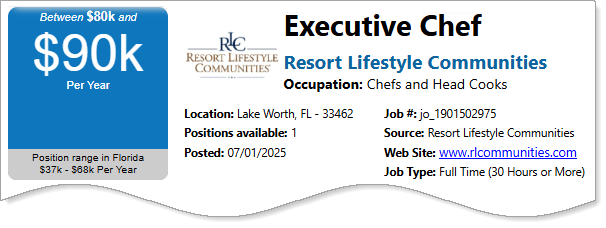
|
Field |
Description |
|---|---|
| Salary |
The pay range or amount offered for the position.
|
| Employer Logo | The company logo displayed on the job posting. |
|
Job Title |
The official title of the position being advertised. |
| Employer |
The name of the company offering the job. |
| Occupation category |
The job’s industry or classification (e.g., Healthcare, Construction). |
| Location | The city, state, or work site where the job is performed. |
| Positions available | The number of openings for this job. |
| Posted date | The date the job was originally published. |
| Updated date | The most recent date the posting was modified. |
| Expire date | The date the posting will close or stop accepting applicants. |
| Job number | The unique ID or reference number for this job listing. |
| Source | Where the job posting originated. |
| Website | A link to the employer’s site or the original job posting. |
| Onsite / remote | Indicates whether the job is performed at a work site, remotely, or both. |
| Job type | Specifies the employment type (e.g., full-time, part-time, temporary). |
Other Links and Buttons
At the bottom of the page, there are additional buttons and links that allow you to track your application status, view previously viewed jobs, change job search criteria, and more.
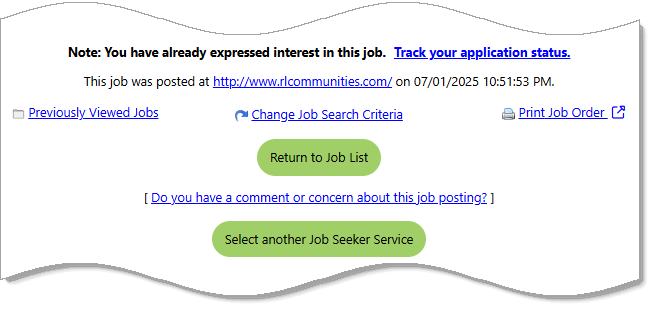
|
To... |
Do This: |
|---|---|
| Track your application status |
If you have already applied to the job, select the Track your application status link. A job details page displays with the application date and method as well as information about the job and employer. On this page, you can enter information to track the steps you have taken to apply for the job:
|
| Visit the site where the job was originally posted | Select the URL included in the This job was posted at [URL] on [date] [time]text. |
| View previously viewed jobs | Select the Previously Viewed Jobs link to display the Jobs tab of your Search History Profile. |
| Change job search criteria | Select the Change Job Search Criteria link. |
| Print the job order | Select the Print Job Order link to open a PDF viewer window, from which you can print or download a copy of the job listing. |
| Submit a comment or concern about a job posting | Select the Do you have a comment or concern about this job posting? link to display a text field where you can leave a comment. Select the Send Message button to alert administrators of a possible concern. |
About the Job Details Page
The Job Details page gives you more information about the job listing such as: salary range, salary position range for that state, location, post and expiration dates, source, job type, and whether the job is on-site or remote. The page also includes several collapsible/expandable sections with links to details about occupational information, required education or training, and job skills.
 Job Requirements and Properties
The icons in this section provide a quick view of the requirements and properties for the selected job. Hover over certain icons to see a tooltip describing the requirement. Selecting certain icons takes you to the corresponding section. Quickly review aspects of the job such as: onsite/remote, degree requirements, day/night shift, hours per week, or full or part-time work.
The following icons represent only some of the requirements that may be listed for a job:
Education
This icon displays the minimum education level. A list of the education levels is as follows:
-
HS - High School Diploma or Equivalent
-
13 - 1 Year of College or a Technical or Vocational School
-
14 - 2 Years of College or a Technical or Vocational School
-
15 - 3 Years of College or a Technical or Vocational School
-
VC - Vocational School Certificate
-
AD - Associate's Degree
-
BD - Bachelor's Degree
-
MD - Master's Degree
-
PD - Doctorate Degree
-
SD - Specialized Degree (e.g., MD, DDS)
Experience
This icon displays the number of months specified by the employer for the minimum experience required.
Driver's License Certification Requirement
If a driver's license is listed as a requirement, this will display either a Commercial License or Operator License. Generally, an Operator's License allows individuals to operate standard passenger vehicles for personal use, while a Commercial License is required for operating large or specialized vehicles for commercial purposes.
Age Requirement
If the employer has specified an age requirement for the position, it will display within the icon, e.g. "21+" for 21 and up.
Security Clearance Requirement
The following is a list of the security clearance levels:
-
Active Confidential: This clearance level allows access to information that could reasonably be expected to cause damage to national security if disclosed without authorization.
-
Active Secret: This clearance level permits access to information that could cause serious damage to national security if disclosed without authorization. It is a step above Confidential.
-
Active Top Secret: This is the highest standard security clearance level, allowing access to information that could cause exceptionally grave damage to national security if disclosed without authorization.
-
Active Top Secret SCI (Sensitive Compartmented Information): This clearance includes access to Top Secret information as well as additional compartmented information that requires special handling and access controls. SCI is not a separate clearance level but an additional designation that requires a Top Secret clearance.
Hours a Week
This icon displays the number of minimum hours per week that is required for the position.
Schedule
Displays either "Full Time" or "Part Time." Full-time work involves working 40 hour per week, while part-time work is generally 25 hours per week or less.
Work Onsite/Remote
This icon displays whether the position is onsite or remote.
Shift
The following lists the possible shift types that may be required:
-
Day Shift - Normally from early morning to late afternoon, often from 9 a.m. to 5 p.m.
-
Evening/Swing - Also known as the second shift, this shift usually starts in the late afternoon and ends around midnight, often from 4 p.m. to 12 a.m.
-
Night/Graveyard - This shift covers late-night hours, typically starting around 11 p.m. or midnight and ending in the early morning, often around 7 a.m. or 8 a.m.
-
Rotating Shift - Employees on rotating shifts work different shifts on a rotating basis, such as switching between day, evening, and night shifts over a set period.
-
Split Shift - A split shift divides the workday into two or more parts with a significant break in between. For example, an employee might work from 8 a.m. to 12 p.m., take a break, and then work again from 4 p.m. to 8 p.m.
-
Other, see job description - This may be unique arrangement specified by the employer.
-
Not Applicable
-
Flexible - A flexible work schedule allows employees to vary their start and end times.
Public Transit
This icon displays if the job is accessible by public transportation.
Anticipated Job Duration
If the employer is advertising a temporary position with a fixed duration, this icon will display the following durations:
-
Over 150 Days
-
4 - 150 Days
-
1 - 3 Days
-
Permanent Employment
Type of Job
The following is a list of the job types that can be displayed from this icon:
-
Regular - A permanent position with no predetermined end date, typically offering full-time hours and benefits.
-
Temporary - A job with a set end date, often used to fill short-term needs such as covering for an employee on leave or handling seasonal demand.
-
Seasonal - Temporary work that recurs around the same time each year, such as holiday retail positions or summer lifeguarding.
-
Contract - Employment for a specific project or period, defined by a contract. Contractors are often hired for their expertise and are not typically considered permanent employees.
-
Volunteer - Unpaid work performed willingly to help others or support a cause, often through non-profit organizations.
-
Internship - A temporary position, often for students or recent graduates, that provides practical experience in a particular field.
-
Registered Apprenticeship - A structured training program combining paid on-the-job training with classroom instruction, registered with a government agency.
-
On the Job Training - Training provided at the workplace while performing actual job tasks, allowing employees to gain practical skills and knowledge.
-
Apprenticeship - A program where individuals learn a trade or profession through hands-on experience and mentorship, often leading to certification.
-
Gig Job - Short-term, flexible work typically performed by freelancers or independent contractors, often found through online platforms.
Match Scores
This section provides a snapshot of how you match the job you're viewing. A match score of 70% or higher is typically considered competitive, indicating your qualifications and skills align well with the job. Employers may adjust this threshold based on applicant volume and job priority. To improve your score, tailor your résumé to highlight relevant experience and skills.
Your Match Score uses advanced algorithms to compare your background with the job, factoring in location, salary, and skill alignment. These components are combined into an easy-to-read graph:
-
General Requirements Match - This score (outermost ring) is based on factors like desired salary, location, occupation, education, and work experience.
-
Job Skills Match - This next ring is based on how well your job skills, including any Tools and Technology or Personal Skills, match the job's requirements.
-
Specialized Match - Represented by the innermost ring, this score matched items such as desired Shift, Minimum Age, Driver’s License Requirements, and Security Clearance.
To view more details on how closely you match this job, click the How I Match Up link. See How Well Do You Match Up to a Job Listing? for details.
Job Description
This section displays the job description provided by the employer for this position. The length of this section and level of detail vary based on what the employer has provided. It may include a list of responsibilities and duties, available shifts, organizational reporting structure, employee benefits, required experience, tools or technologies, etc. If the position comes from a Private Job Board (PJB), only a partial description will display.
As you review the description, consider whether the position is a good fit and whether you should adjust your résumé to highlight the skills that match what the employer is seeking.
Additional Information
This section lists any additional information that the employer may choose to include for this position, such as additional qualifications, general knowledge and abilities, and requirements that aren't covered elsewhere.
-
Additional Qualifications - Specialized training, language abilities, appearance requirements are examples of what the employer may be looking for in a candidate.
-
General Knowledge and Abilities - Examples include a familiarity with requirements specific to a trade, an ability to work with the public, or an ability to engage in record-keeping.
-
Specialized Requirements - These requirements can include examples such as an ability to lift a specified weight, standing for long periods of time, typing requirements, or security clearances.
Employer Research
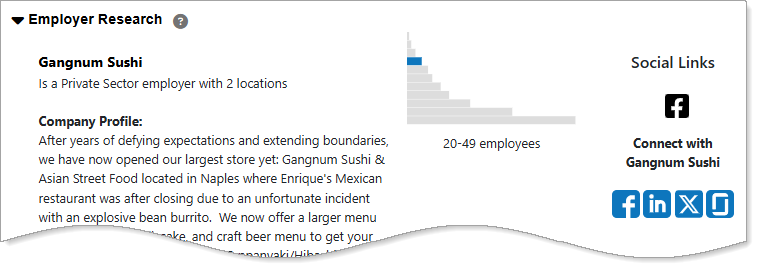
This section displays information about the employer posting the job. This information includes the company name and website, size, type, and company profile. If the employer chooses not to display their name, location, or website, that information does not appear. You can use the social media icons on the right side of the section to connect with, or read more about, the company.
-
Employer Name - The name of the employer/company that posted the job.
-
Common Business Name - This displays when the job is an external job, and not an internal job posting by a registered employer. A common business name refers to the name by which a business is generally known to the public but is registered under a different legal name.
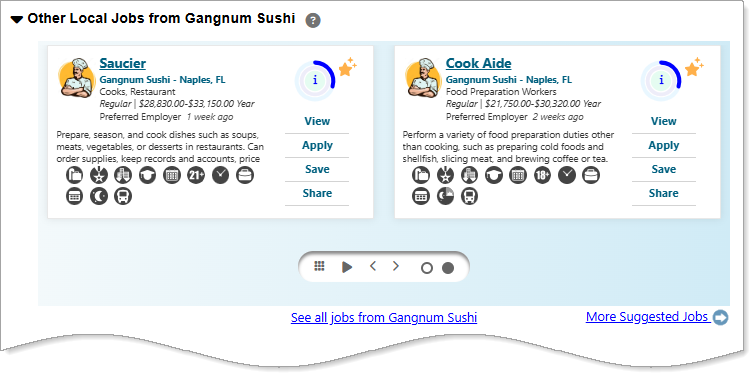
Other Local Jobs from [Employer]
This section allows you to view other local jobs from the same employer. Selecting any job card takes you to the job details page for that position. Icons below the cards let you switch to a grid view or move forward and backward through the cards when multiple jobs are available. You can also perform various actions directly from each job card. See Job Search Results Page Overview for details.
Use the links in this section to explore additional job listings that match your criteria or come from the same employer:
-
See all jobs from [employer]: View all positions the company has posted statewide.
-
More Suggested Jobs: View additional local opportunities based on your search criteria.
Location/Work Site Information
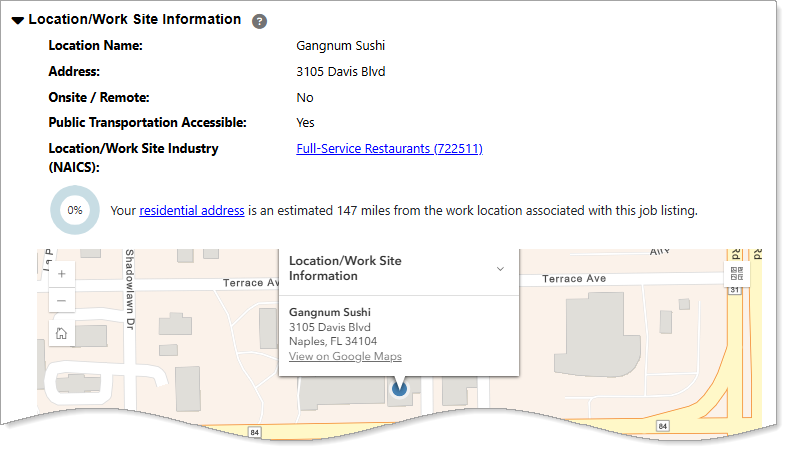
This section lists information about the work site for the job order. You’ll see a Match Score based on how close your residential address is to the job’s work location. If the employer has not included a specific address, the score will use a general area like a zip code for the work site location. A map is included displaying the location for the job opening, or its general area. In addition to the score ring, a statement containing the distance from the residential address to the work location displays. If you wish to update your current address, select the residential address link. The Contact Information page appears where you can make your changes.
-
Location Name - This is the name of the location where the job is located. Some employers post jobs for more than one location. For example, a bank might post a job for their primary location ("Main Office") and another job that is located at a smaller branch office ("Elm Street Branch").
-
Address - This is the address of the Location/Work Site for the job order. Keep in mind that suppressed job orders, a type of job listing where the details are not publicly available to job seekers, will not display location information. Employers use suppressed job orders for a more controlled and selective recruitment process.
-
Onsite/Remote - Indicates whether remote work options are available.
-
Public Transportation Accessible - If the employer has stated that the work site location is on a bus, subway, or train route, this field will display.
-
Worksite Industry (NAICS) - The industry that covers the goods/services this work site provides, as determined by the North American Industry Classification System (NAICS). Select the [industry name] link to access more detailed information.
Cost of Living Calculator
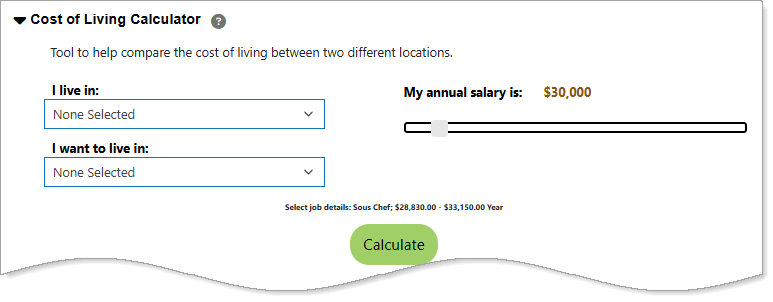
Use this tool to compare the cost of living between two different locations. The cost of living refers to the amount of money you need to maintain your current lifestyle in another location. See Compare the Cost of Living in Different Areas for details.
Compensation and Benefits
In this section, you’ll find information about the job’s pay and benefits, if provided by the employer. You can evaluate whether the job matches your desired compensation package.
- Salary Range - The range of minimum and maximum salary that the employer has specified for this position. Some employers choose to only list a minimum and not a full range.
-
Benefits Provided - The benefits that the employer provides access to, including medical, dental, life insurance, sick leave, vacation, etc.
-
Other Benefits - Additional rewards or incentives offered on top of salary and non-wage compensation.
If the employer did not specify a salary or benefits, the system will display Not Available.
If you are a registered user, and have saved a Desired Salary to your background, your desired salary match score will display at the bottom of this section. Select the link in the statement next to the score if you want to edit your Desired Salary saved to the Background tab in your Individual Profile.
To view regional wage statistics for this occupation within your designated geographic region, select the View what local employers are paying [occupation] link. The Occupation Profile page displays.
Job Type and Required Hours
This section contains the characteristics of the job, such as the hours, shifts, and whether it's full-time or part-time work. If the employer did not specify this information, the system displays Not Available.
Full or Part Time - Full Time indicates that you will be required to work 30 hours or more per week. A Part Time position offers less than 30 hours a week.
Job Duration - Indicates how long the job is expected to last. Job Duration can be a factor for temporary or contract work where the position lasts for a finite amount of time.
Type of Job - This refers to whether the job is a regular, temporary, seasonal, or other type:
-
Regular - A permanent position with no predetermined end date, typically offering full-time hours and benefits.
-
Temporary - A job with a set end date, often used to fill short-term needs such as covering for an employee on leave or handling seasonal demand.
-
Seasonal - Temporary work that recurs around the same time each year, such as holiday retail positions or summer lifeguarding.
-
Contract - Employment for a specific project or period, defined by a contract. Contractors are often hired for their expertise and are not typically considered permanent employees.
-
Volunteer - Unpaid work performed willingly to help others or support a cause, often through non-profit organizations.
-
Internship - A temporary position, often for students or recent graduates, that provides practical experience in a particular field.
-
Registered Apprenticeship - A structured training program combining paid on-the-job training with classroom instruction, registered with a government agency.
-
On the Job Training - Training provided at the workplace while performing actual job tasks, allowing employees to gain practical skills and knowledge.
-
Apprenticeship - A program where individuals learn a trade or profession through hands-on experience and mentorship, often leading to certification.
-
Gig Job - Short-term, flexible work typically performed by freelancers or independent contractors, often found through online platforms.
Work Experience
Minimum Experience Required - If the employer requires a minimum amount of experience for the job, it displays here; if an experience level was not entered by the employer, the system displays Not Available.
If you are registered in the system, you can view additional information about employer requirements. This information shows the minimum work experience needed for online job openings in the chosen job and area. It is based on a system called “Jobs De-duplication Level 2,” which helps find and remove duplicate job listings. This process makes sure the same job is not counted more than once, so the number of job openings is more accurate.
Information for minimum required work experience lets you view the number of advertised job openings by required experience levels. You can include job openings without a minimum experience specification by selecting the click here to include them link above the table. When selected, these openings immediately display in the table and pie chart below.
Education and Training
Minimum Education Level Required - If the employer requires a minimum education level for the job, it displays here; if an education level was not entered by the employer, the system displays Not Available.
Required License/Certification - Any licenses or certifications required by the employer display here. If one was not entered by the employer, Not Available displays instead.
If you are registered in the system and have saved your Education History, you can see extra information about the minimum education level employers are asking for in jobs in your selected area. This information is based on a process that removes duplicate job listings so the job counts are accurate.
The education data shows how many job openings require each education level. You can also choose to include jobs that do not list a minimum education requirement by selecting the click here to include them link above the table. When you do, those jobs will appear in the table and the pie chart.
To explore education and training programs related to the occupation you are searching, select the Related Education Opportunities link. This will show you programs and providers that may help you prepare for the job.
Skills Required
The system matches the skills saved to your profile to those that are typically required for the occupation you selected. Each match score displays the percentage match, followed by a statement explaining the score. You can see a detailed, direct comparison between your skills and those of the job by selecting the available links:
-
Job Skills - Select the link provided in this statement to view the skills you have compared to those required for the occupation from your search. See How I Match Up – Job Skills Match for details.
-
Tools and Technology skills - Selecting the link provided in the statement next to your score allows you to view the Tools and Technology skills associated with the selected occupation, and which skills your background matches. See How I Match Up – Tools and Technologies Match for details.
-
WorkKeys scores - WorkKeys scores are results from the ACT WorkKeys assessments, which measure foundational skills essential for workplace success. These scores are used to determine an individual's proficiency in areas such as Applied Math, Graphic Literacy, and Workplace Documents. Selecting the link provided in the statement next to your score allows you to view the Workplace skills associated with the selected occupation, and which skills your background matches. If you have not saved any skills, or to update them, visit "My Portfolio" under the Quick Menu on the left navigation and edit them from the Multiple tab in your Self Assessment Profile.
-
Personal Skills - The system matches the personal skills from your profile with those that are typically associated with the selected occupation and provides a match score. Select the link in the statement next to your score to view these skills and their descriptions. See How I Match Up – Personal Skills Match for details.
Specialized Job Requirements
This section displays any specific job requirements for the job, such as test requirements, screenings or background checks, specific required licenses, or minimum age requirements.
Registered individuals viewing this section see a match score based on how well they match a specific requirement, provided the relevant information has been entered to their background.
To enter or change this information select the My Portfolio link under the Quick Menu on the left navigation. Once in your portfolio, you can enter or edit your education information or specialized training from either the General Information or Background tabs.
Occupation Information for [Occupation]
This section contains occupation details, based on the O*NET information for the job title.
Below each icon is a link that provides more information on the occupation, allowing you to see local employers who hire for your position, the employment outlook for the occupation, or competition in the job market surrounding your occupation.
Select the Learn more about [occupation] link to view the current labor market information in your area for that occupation. A complete overview of statistical information related to your occupation, including Job Demand, Work Experience, Required Education and more displays. This can be a good starting point for entry-level candidates to learn more about their chosen field, or for more experienced workers trying to gauge the demand and outlook in their line of work.
Job seekers registered with the system see a match score if they have saved a Desired Occupation to their background. The score indicates how closely aligned their job requirements are between the searched occupation and the desired one. To add or edit your Desired Occupation, select the Your desired occupation link to go directly to the Desired Occupation page to save it to your background.
Other Jobs and Employers
This section contains links to view other matching and related jobs available. It also shows the number of job openings advertised online for the occupation and area you selected. The table in this section lists the related occupational group for your selected occupation.
-
Select any of the links in the Occupation column to view the related Occupation Profile.
-
Select any of the links in the Job Openings column to view the job postings for the occupation in that row.
Occupations displaying the Bright Outlook icon indicate occupations that are expected to: grow rapidly in the next several years; have large numbers of job openings; or, are new and emerging occupations. A green leaf icon identifies occupations that are Green occupations, which are generally found in those industries involved in energy or environmental efficiency and renewal.
Tables, graphs and maps can be exported or printed, using the icons on the bottom right. To export, select the download icon, and choose from the following selections: Excel, Word, or PDF for tables; JPEG, PNG, SVG, or PDF for graphs and maps; or, print by selecting the Print icon.
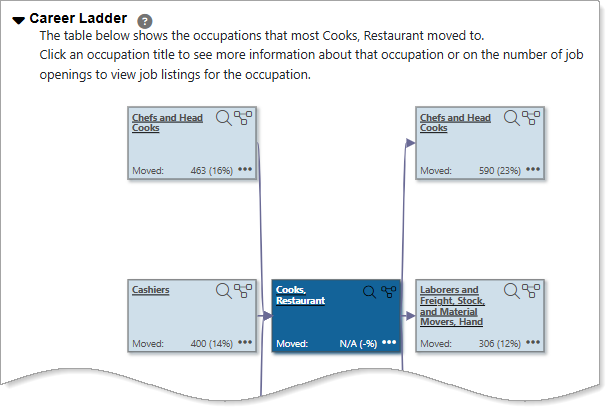
Career Ladder
Career ladders help you learn about the job options that are available as you progress through a career. This visualization consists of a group of related jobs that comprise a career path, and represent the possible job progression of workers within it. You can select an occupation title to see more information about that occupation or select the number of job openings to view job listings for the occupation. See Explore Career Paths Using the Interactive Tool for details.
Work Values and Activities
Work Values are global aspects of work that are important to a person's satisfaction, like independence, achievement, or supportive management. The links in this section allow you to view work values and activities that are typically important to your occupation.
The information shown in this section depends on what you’ve saved in your background.
-
Registered users who have work values saved to their background see a match score based on how well the position matches their saved values. A higher score indicates the position matches your values.
-
If you do not have work values saved to your background, you can add them by selecting the Work Values link to start the Work Values Analyzer. The analyzer can help you learn more about your work values and help you decide what is important to you in a job.
-
To edit your work values, select the match link and select the Edit Your Work Values link at the bottom of the Work Values page to retake the Work Values Analyzer.
-
To view the typical work values for the selected occupation, select the View what is typically important in a job to [occupation] link to see a list of common work values and their descriptions.
-
The View typical work activities for [occupation] link allows you to view the most common work activities required by the occupation. These activities, based on a national survey, are ranked by order of importance and include descriptions for each.