
 Left Navigation Menu












Explore Career Paths Using the Interactive Tool
Overview
The Career Ladder tool helps you explore careers by showing where people in a given occupation typically come from and where they often move to next. This powerful tool suggests logical next steps based on your transferable skills, experience, education, and local job opportunities. Arrows between occupations illustrate potential career pathways, showing how you can move from one role to another. This visualization helps you understand career progression opportunities and plan your professional development with confidence.
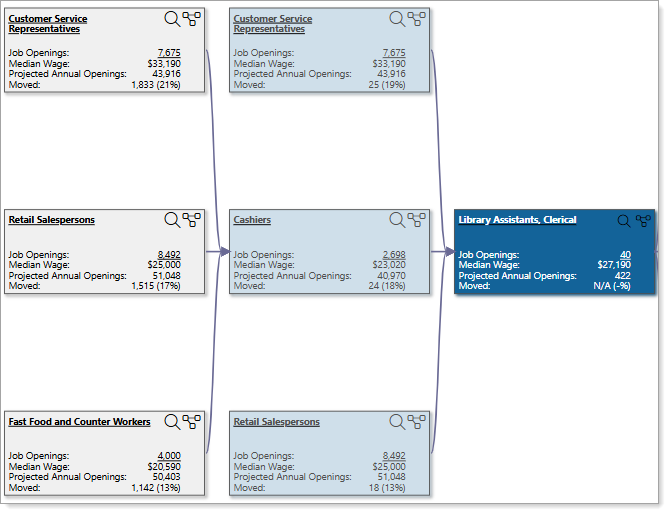
Career Ladder Interactive Tool Example for Library Assistants.
Where to Find This Feature
-
Left navigation menu > Services for Individuals > Career Services > Career Explorer > Career Ladder > Occupation Quick Search [select an occupation] > Occupation LMI Analyzer
-
My Dashboard > Widgets > Career Services Widget > Career Explorer > Career Ladder > Occupation Quick Search [select an occupation] > Occupation LMI Analyzer
-
My Dashboard > Directory of Services > Services for Individuals > Career Services > Career Explorer > Career Ladder > Occupation Quick Search [select an occupation] > Occupation LMI Analyzer
Steps to Use the Career Ladder
-
Select the Career Ladder link on the Career Explorer screen.
-
The Occupation Search screen will open (with the Occupation Quick Search tab selected by default).
You can use any of the Occupation Search tabs to run the search listed in Step 2 if you wish to switch from the default tab selection. If you are using a screen reader, the Occupations By Keyword tab is recommended for best results.
-
Enter a keyword to search for an occupation and select the Search button.
-
The search results list a series of Occupation Name links. Select the one you want to view on the Career Ladder. The Career Ladder page displays a visual representation of the selected career and the occupations individuals typically come from and where they often move to next when changing occupations.
Key Actions
Below is a list of key actions when using the Career Ladder:
|
To |
What It Does |
|---|---|
|
Find your selected occupation |
The card displaying your selected occupation has a dark background in comparison to the cards displaying the occupations moved to and from on either side, which have a lighter background. |
|
Change the Area selection |
Select the Area link, located on the top left above the Career Ladder, to switch to one of the following: County, MSA (Metropolitan Statistical Area), Workforce Region, or State. |
| Switch to Education or Labor Market Information data |
Select the Data to Display drop-down list, located on the top right above the Career Ladder, to switch the information display. The page automatically refreshes to display the new selection. To switch back to the Career Ladder, simply change this selection to Visual Career Ladder - % Moved. |
| Go to the Occupation Profile |
Selecting either the Occupation Title link or the magnifying glass icon on a card allows you to view the Occupation Profile. This page provides an overview of the advertised job openings, education and experience requirements, skills requirements, wage information, and more for the selected occupation. |
| View Job Openings for an Occupation | The Job Openings number link opens a page of current job listings for your selected area. |
| Change the Selected Occupation | If you want to see the Career Ladder for a different occupation within the ladder, select the ladder icon (next to the magnifying glass icon) on any of the unshaded cards to change the selected occupation. |
| Expand the Career Ladder | Selecting a blank area of the card for one of "moved to" occupations expands the career ladder to display more related occupations. In other words, it shows a potential further progression beyond the initial one. |