
 Left Navigation Menu












Complete a Common Application for Eligibility Prospects
Overview
The Common Application pre-application wizard allows you to select federal programs you are interested in applying for, provide basic information about yourself and your circumstances, and then submit the pre-application to your local one-stop office staff for evaluation and eligibility determination.
The Common Application pre-application wizard begins with a color-coded introduction page that explains the pre-application concept and describes each available program, allowing you to select those for which you believe you may qualify based on your circumstances.
Not all sites have all programs listed.
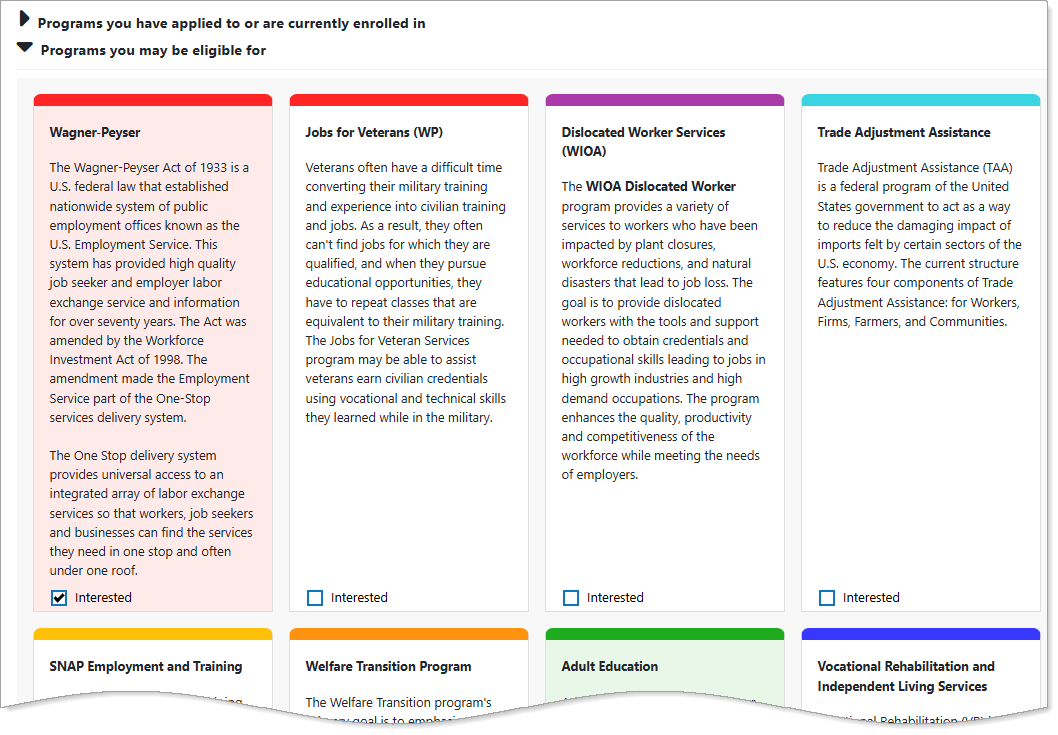
Common Application - Intro Page
Where to Find This Feature
-
Left navigation menu > Services for Individuals > Common Application
-
Left navigation menu > Quick Menu > My Portfolio > My Individual Plans > Benefits Plan Profile > Common Application link at bottom of page
-
My Dashboard > Widgets > Community Services and Benefits widget > Common Application link
-
My Dashboard > Widgets > My Benefits Plan widget > My Benefit Summary link > Common Application link at bottom of page
-
My Dashboard > Benefit Status > Adult Services (WIOA) or Dislocated Worker Services (WIOA) About card > Learn More link > Common Application link at bottom of page
-
Directory of Services tab > Services for Individuals > Common Application icon
-
Header bar > Profile icon > My Individual Plans > Benefits Plan Profile folder > WIOA tab > Common Application link at bottom of page
-
Footer bar > Services > For Individuals link > Common Application icon
Steps to Complete a Common Application
Your site may display different options from those shown here.
-
Read the program descriptions, and then select the Interested checkboxes in the lower left corner for the programs in which you are interested.
-
Select the Next button at the bottom of the page to continue. The Intro page of a multi-page application wizard displays. A progress bar at the top of each page shows where you are in the application wizard.
-
Verify the information that was prefilled from your registration, make any necessary changes, then select the Next button. Your information is saved, and the Contact page displays.
-
Continue entering all required information marked with a red asterisk (*) and any other available information, selecting the Next button on each page to save and proceed. The information required varies according to the programs in which you indicated interest.
-
If your system has the Document Management module, see Upload a Document.
-
After you've completed all pages, the Eligibility Review page displays. From this page you can:
-
View the list of programs and services – View the list of programs and services you may qualify for in the program listing section. Select a program link to view additional information.
-
View and print a PDF version of your Summary Report – Select the View Summary Report button in the What's Next section. You can take this with you when visiting your local one-stop job center.
-
View and print a list of all required verification documents for your state – Select the View Document List button.
-
View information about your nearest one-stop offices – See the address and contact information of your nearest one-stop offices, and display a Google map of each location by selecting its Map Address link. Be sure to print or download any needed information from this page before selecting the Finish button. Once you submit your pre-application, you cannot view or change it.
-
-
Select the Finish button to submit your pre-application. Your dashboard displays. A notification is sent to workforce staff at your nearest one-stop office; they will contact you after reviewing your application.