
 Left Navigation Menu












Request an Appointment with Staff
Overview
From your Appointment Calendar, you can request a meeting with a local workforce center staff member and see all available time slots for your location. You can view your upcoming appointments and select any appointment to see its details. If no times are available on your chosen date, select another date to find more openings. After you submit a request, you’ll see a confirmation page and receive a message center notification once staff approve it.
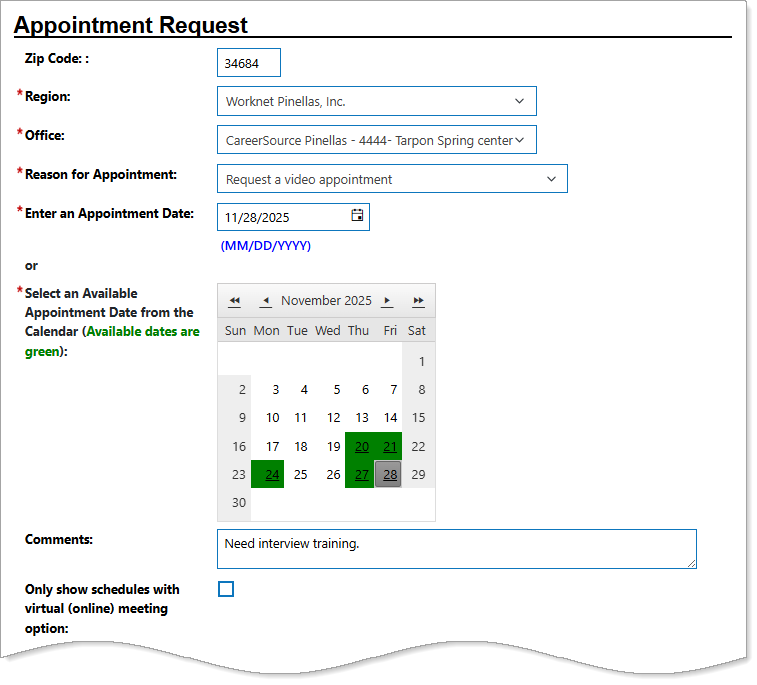
Entering Appointment Request Details
Where to Find This Feature
-
Top menu bar > Calendar icon > Request Appointment button
-
Left navigation menu > Other Services > Appointment Center > Request Appointment
-
Left navigation menu > Other Services > Appointment Center > Appointment Calendar > Request Appointment link (below calendar)
-
My Dashboard > Widgets > My Calendar widget > Request Appointment link
-
Directory of Services tab > Other Services > Appointment Center icon > Request Appointment icon
Steps to Request a Staff Appointment
Your site may display different options from those shown here.
-
On the Appointment Availability page, review the fields that have been pre-filled with information, and make any changes, as needed.
-
Select a Reason for Appointment. You can request to meet your case manager in person or virtually via video appointment.
-
Do one of the following:
-
Enter a desired Appointment Date.
-
Select from the available appointment dates displayed in green in the appointment calendar.
-
-
To provide additional information for staff, such as details for the meeting request, enter it in the Comments text box.
-
To display only virtual meeting availability, select the Only show schedules with virtual (online) meeting option checkbox.
-
In the Appointment Schedule Calendar section that appears when an available appointment date is chosen, select the Staff Resource (member) you wish to meet with from the drop-down list.
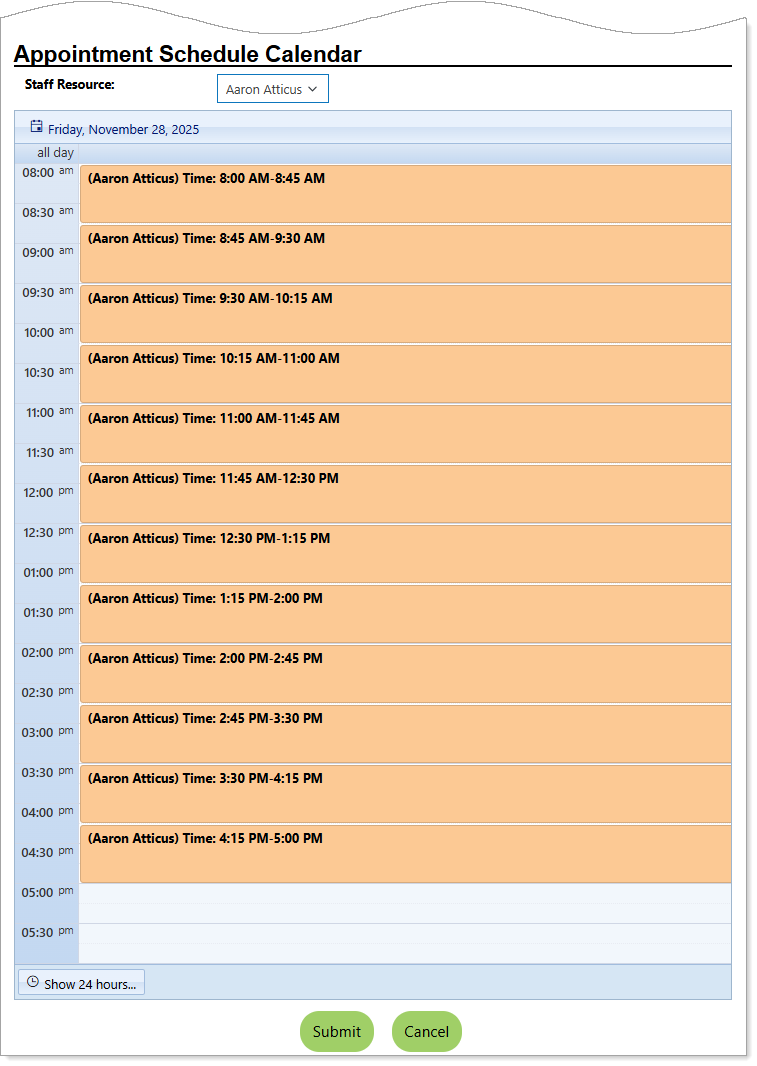
Choosing a Time Slot
-
Select an available time slot for that staff member.
-
Select the Submit button to send your request to the selected staff member. The Appointment Request Confirmation page appears with the appointment details.
-
You can view the booked appointment on your Appointment Calendar. See Manage Your Appointment Calendar for details.
Staff review your appointment request and may accept it or suggest a different option, such as an office visit or phone call. For virtual meetings, they’ll set up a Microsoft Teams or Zoom call. You’ll receive a response message with a link to the Appointment Information page, where you can join the meeting or cancel the appointment. Once accepted, the appointment appears on your calendar, and you can open it anytime to view the details again.