
 Left Navigation Menu












Manage Your Appointment Calendar
Overview
The Appointment Calendar lets you enter and track appointments related to your job search and benefits program. You can view appointments you are scheduled to attend and select the appointment subject to see more details. In addition to the events you have registered for and other appointments that display, you can add your own, if helpful for consolidating tracking and preventing scheduling conflicts.
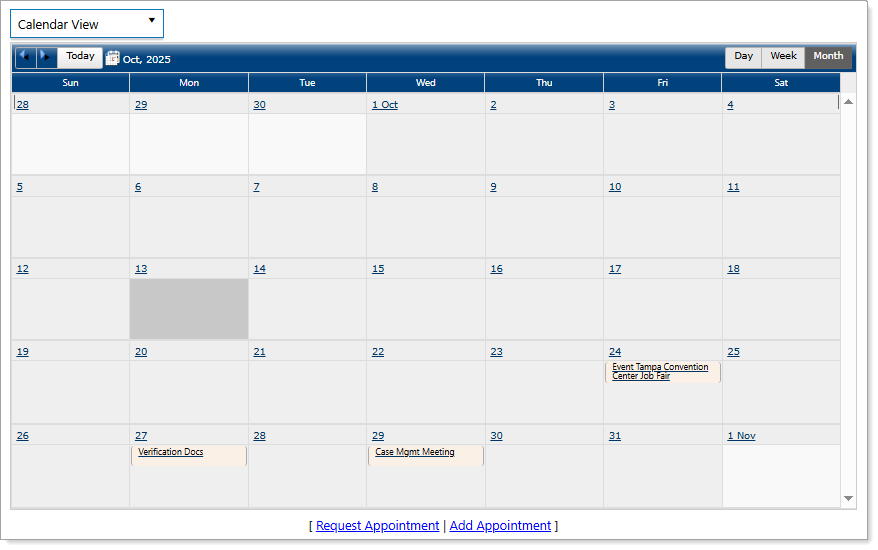
Appointment Calendar
Where to Find This Feature
-
Top menu bar > Calendar icon > Appointment Calendar button
-
Left navigation menu > Other Services > Appointment Center > Appointment Calendar
-
Left navigation menu > My Individual Workspace > My Resources > My Appointments
-
My Dashboard > Widgets > My Calendar widget > New Appointments link
-
My Dashboard > Your Statistics > Messages > [number] New Appointments
-
Directory of Services tab > Other Services > Appointment Center icon > Appointment Calendar icon
Steps to Manage Your Appointment Calendar
Your site may display different options from those shown here.
From this page, you can perform the following tasks:
|
To... |
Do This: |
|---|---|
|
Change the calendar’s display view |
From the drop-down list at the top left of the page, select Calendar View to display each day of the month in a calendar grid, or Detailed List View to display a list of only dates having appointments in the selected month. |
|
Change the date range displayed |
Using the arrows or the calendar control at the top left of the calendar, and the Day, Week, or Month buttons at the top right of the calendar, choose the date range you want to display on the calendar. |
| View or edit appointment details | Select an appointment title to display its details. Depending on the type of appointment, you can also indicate status changes for it. For example, if a one-stop staff member requests to schedule an appointment with you, you can accept, tentatively accept, or decline the appointment. If you request and confirm an appointment with staff, you can later cancel the appointment if needed. |
| Request an appointment with staff | Select the Request Appointment link to request an appointment with available staff. See Request an Appointment with Staff for details. |
| Create a new appointment | Select the Add Appointment link to add an appointment you want to keep track of that isn’t with staff or employers in the system—for example, a job interview for a position made outside this website. Events you sign up for in the system are added to your calendar automatically, so you don’t need to add them yourself. See Add an Appointment for details. |
| Schedule Further Out from the Current Month |
In Calendar view, select the Calendar icon at the top left to open the date picker.
|