
 Left Navigation Menu












Register for Job Fairs and Other Events
Overview
On the Events Calendar, you can view and register for Job Fairs, Workshops, and other events. You can filter the events displayed to quickly find the perfect event for you and register with the tap of a button.
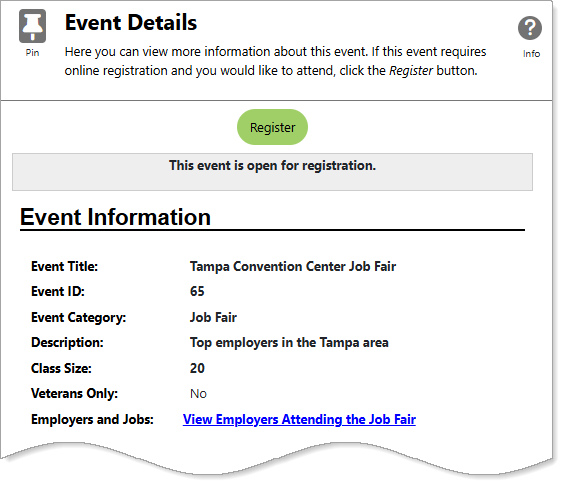
Registration Page for an Event
Where to Find This Feature
-
Top menu bar > Calendar icon > Events button
-
Left navigation menu > Other Services > Appointment Center > Events Calendar
-
Left navigation menu > My Individual Workspace > My Resources > Upcoming Events
-
My Dashboard > Widgets > Current Events widget > More Events
-
My Dashboard > Widgets > My Calendar widget > Events link or Upcoming Events link
-
Directory of Services tab > Other Services > Appointment Center icon > Events Calendar icon
Steps to Register for Job Fairs and Other Events
Your site may display different options from those shown here.
-
Use the various filter criteria to choose what kind of event, location, etc. you are looking for. Be sure to select the Job Fair option under the Event Category filter.
-
To apply your filters, select the Filter link.
-
To reset the filter criteria to the default selections when you first visited this page, select the Reset Filters link.
-
-
To preview the details of an event, hover over it in the calendar.
-
Once you find an event you want to register for, select the title on the calendar. Please note that you may not register for events in the past.
-
Review the following sections for the event: Event Information, Schedule, Location, Moderator/Presenter, and Registration.
-
If you would like to attend the event, select the Register button at the top or bottom of the page and select the OK button to confirm. A confirmation page displays once registered.
When you return to the Events Calendar, the title of the event displays in italics and shows '(Registered)'.
-
To create an entry for a calendar application such as Outlook, select the Download Event as vCalendar (.VCS) file or Download Event as iCalendar (.ICS) File link. If you are unsure which link to use, try ICS first, as it is the more modern format.
-
You are prompted to download the file. Once downloaded, open the file to load it into your calendar application.
-
-
To cancel your registration, select the event on the calendar, and on the Event Details page, select the Cancel Registration button and confirm. A message displays, stating "You have successfully canceled your registration for this event."
When you return to the Events Calendar, the title of the event now shows '(Canceled)'.