
 Left Navigation Menu












View Upcoming Events
Overview
The Events Calendar lets you explore upcoming opportunities in your area, including events that offer online registration, such as training classes or job fairs. When you first open it, the Events Calendar displays events for the current month filtered for the workforce office associated with your location. You can refine your search using the provided filter criteria to find the events that meet your needs.
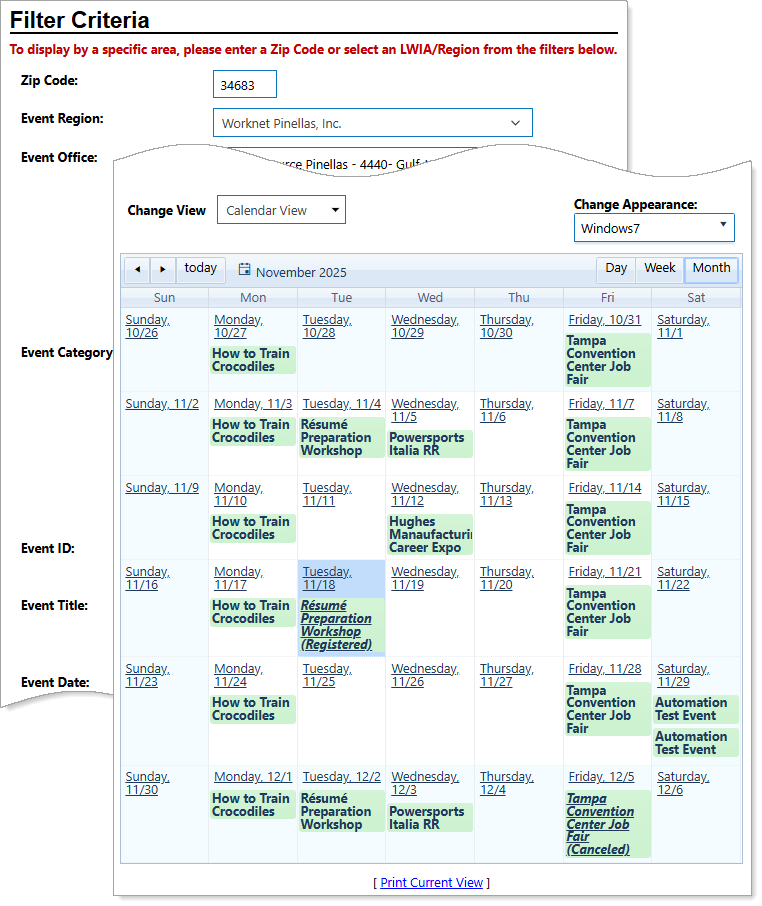
Events Calendar and Filter Criteria
Where to Find This Feature
-
Top menu bar > Calendar icon > Events button
-
Left navigation menu > Other Services > Appointment Center > Events Calendar
-
Left navigation menu > My Individual Workspace > My Resources > Upcoming Events
-
My Dashboard > Widgets > Current Events widget > More Events link
-
My Dashboard > Widgets > My Calendar widget > Events link or Upcoming Events link
-
Directory of Services tab > Other Services > Appointment Center icon > Events Calendar icon
Steps to Use the Events Calendar
Your site may display different options from those shown here.
From this page, you can perform the following tasks:
-
Filter which events to display – Choose your filter criteria and select the Filter link to apply the filters. Use the filter criteria controls to display information by:
-
Event regions and offices (or statewide for particular event categories)
-
Event Categories
-
Event ID (this ignores all other criteria in filter fields)
-
Event Title (can choose Exact match, Begins with, or Like)
-
Event Date (select the Calendar icon to use the date picker)
-
Veterans Only (select the checkbox)
-
Location Type (helpful if you prefer in-person or online events)
-
Show only my events (using this ignores all other specified criteria)
-
-
Move to other calendar pages – Use the controls on the top left and right of the calendar to display different days, weeks, months, and years.
-
View event details – Select an event in the calendar to view the schedule, location, moderator, and registration method, or to register for the event or cancel an existing registration. Events you register for display in italics with ‘(Registered)’ shown after the event name.
-
Print the calendar – Select the Print Current View link, then at the bottom of the pop-up window, choose the Print button.