
 Left Navigation Menu












Apply a Different Template to a Résumé
Overview
Résumé templates define a résumé’s text formatting and section layout, and every résumé has a template associated with it. You might want to use specific résumé templates for different jobs because each one emphasizes different aspects of your background, or you may want to a functional résumé for some job types and chronological for others—choosing the right one can help you present yourself in the best possible light for a specific job or occupation.
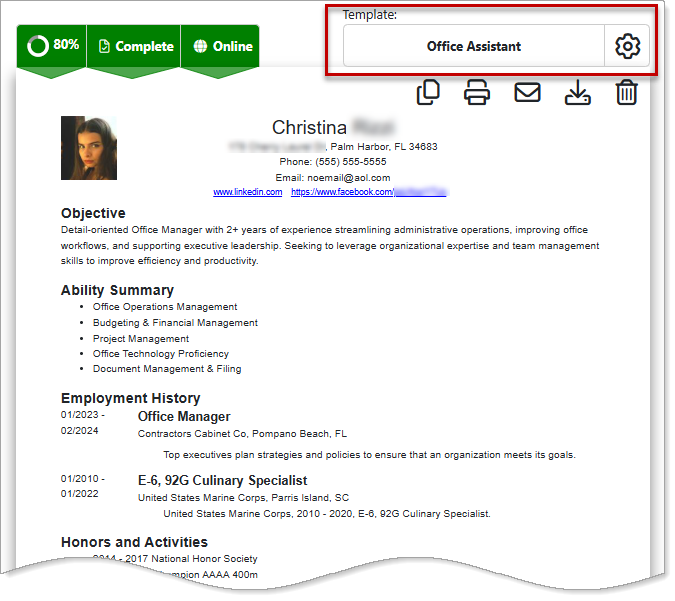
Résumé Builder — Applying a Different Résumé Template
You cannot use résumé templates with uploaded résumés.
Where to Find This Feature
-
Top menu bar > Résumé icon > Résumé Manager button
-
Left navigation menu > Quick Menu > Résumé Builder
-
My Dashboard > Widgets > Job Seeker Services widget > Résumé Builder link
-
Directory of Services tab > Services for Individuals > Job Seeker Services icon > Résumé Builder icon
Steps to Apply a Different Résumé Template
Your site may display different options from those shown here.
-
Open your résumé using one of two methods:
-
Select the résumé thumbnail icon itself.
-
Select the gear icon on the résumé thumbnail and choose the Edit link.
-
-
On the Résumé Builder page, select the template field to display the Choose a Résumé Style page. This page displays the available résumé templates as thumbnails so you can preview the format.
-
Select the desired template to apply it. The Résumé Builder page refreshes with the template formatting and content in place.