
 Left Navigation Menu












Specify Your Desired Salary
Overview
Specify your desired salary to help recruiters quickly identify you as a match for their budget. This increases your chances of being contacted for suitable roles and sets clear expectations early in the hiring process. Tools are available to help you determine an appropriate salary range.
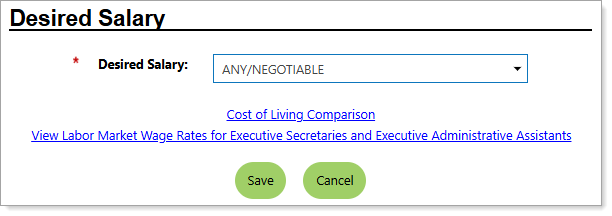
Personal Profile – Background Tab – Additional Employer Searchable Items – Selecting a Desired Salary
Where to Find This Feature
-
Header bar > Profile icon > Background tab > Additional Employer Searchable Items > Desired Salary section > Edit Desired Salary link
-
Left navigation menu > Quick Menu > My Portfolio > My Individual Profiles > Personal Profile > Background tab > Additional Employer Searchable Items > Desired Salary section > Edit Desired Salary link
-
The [your name] link in the Welcome statement on the dashboard > Background tab > Additional Employer Searchable Items > Desired Salary section > Edit Desired Salary link
Steps to Specify Your Desired Salary
Your site may display different options from those shown here.
-
Select your Desired Salary from the drop-down list.
-
To view information comparing where you live now to where you want to go, select the Cost of Living Comparison link.
-
Select your locations from the I live in and I want to live in drop-down lists.
-
Use the My annual salary is slider to set your income.
-
Select the Calculate button. The system pulls information from the Council for Community and Economic Research (C2ER) and displays a variety of metrics, including wage statistics, living expense comparisons, salary area distributions, and more.
-
-
To view information on your selected occupation, select the View Labor Market Wage Rates for [your occupation] link. Your occupation profile is displayed, which includes wage statistics, information on your competition, information on related occupations, and more. See Occupation Profile for details.
-
Select the Save button to return to the Background tab or the Next button in the background wizard to save and proceed to the next page.