
 Left Navigation Menu












Add or Edit Tools and Technology
Overview
The Tools and Technology page allows you to add and modify the specific skills you have acquired through work experience, training, and education. This interactive page provides an organized way to review, add, or update job-related skills across multiple categories, ensuring a comprehensive and accurate skills profile that enhances your résumé and professional profile.
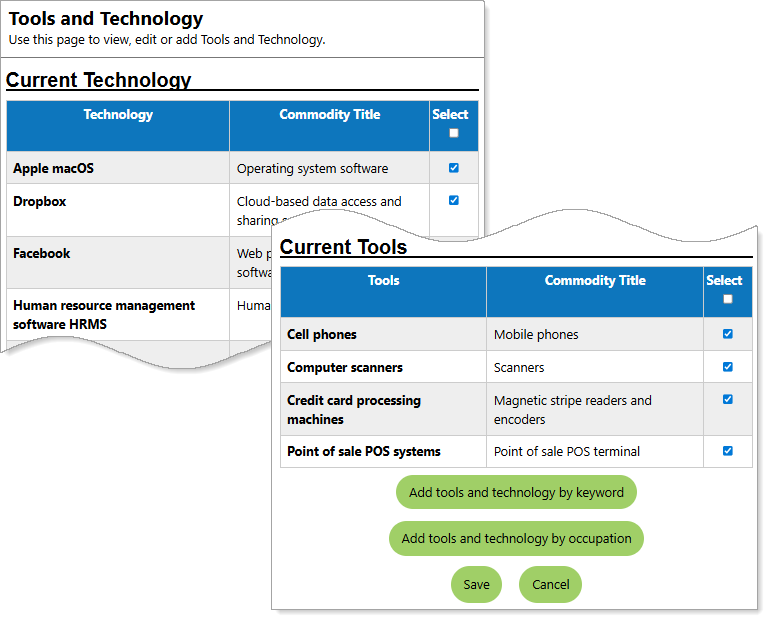
Tools and Technology Page
Where to Find This Feature
-
Header bar > Profile icon > Personal Profile > Background tab > Core Background Items > Tools and Technology section > Edit Tools and Technology link
-
Left navigation menu > Quick Menu > My Portfolio > My Individual Profiles > Personal Profile > Background tab > Core Background Items > Tools and Technology section > Edit Tools and Technology link
-
[your name] link in the Welcome statement on the dashboard > Personal Profile > Background tab > Core Background Items > Tools and Technology section > Edit Tools and Technology link
-
My Dashboard > Widgets > My Assessments widget > Tools and Technology Skills link > Edit Tools and Technology link
-
My Dashboard > Widgets > My Personal Profile widget > My Background link > Edit Tools and Technology link
Steps to Manage Your Tools and Technology
Your site may display different options from those shown here.
-
To use a keyword to search for and select your skills and tools:
-
Select the Add tools and technology by keyword button at the bottom of the page, then enter the desired keyword.
-
To use an occupation to search for and select your skills and tools, select the Add tools and technology by occupation button at the bottom of the page, then select the desired occupation.
Using either method displays tables listing tools and technology from which you can select those appropriate for you.
-
-
Check or uncheck the boxes for the tools and technology in the list and select the Add these tools and technology button at the bottom of the page. The Tools and Technology page redisplays with your updated selections.
-
Select the Save button to return to the Background tab or the Next button in the background wizard to save and proceed to the next page.