
 Left Navigation Menu












Upload a Résumé File
Overview
If you already have a polished résumé—in Microsoft Word, PDF, or HTML format—you can upload it and preserve its original formatting. Uploading it means you don’t need to manually retype all your education, work history, and skills. The system automatically copies pertinent information from the file to the Background tab of your Personal Profile. Any new education or employment history or occupational licenses, certificates, or training are added, but no existing profile information is overwritten.
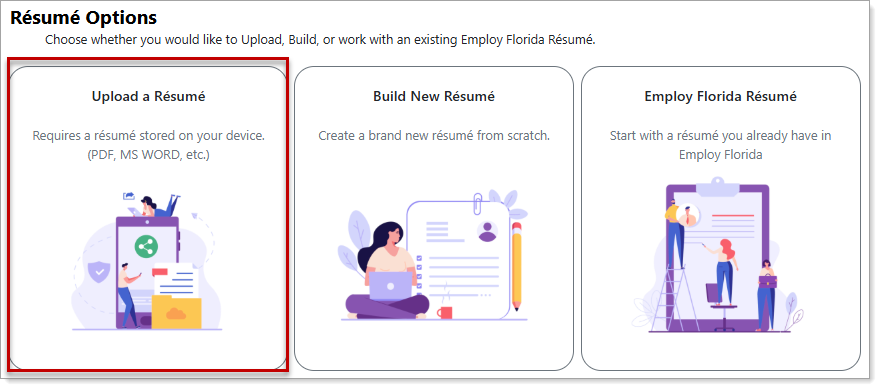
Résumé Options — Upload a Résumé
Where to Find This Feature
-
Top menu bar > Résumé icon > Résumé Manager button or Create, Edit, or Upload a Résumé thumbnail icon > Add Résumé thumbnail icon
-
Left navigation menu > Quick Menu > Résumé Builder > Add Résumé thumbnail
-
My Dashboard > Widgets > Job Seeker Services widget > Résumé Builder link > Add Résumé thumbnail icon
-
Directory of Services tab > Services for Individuals > Job Seeker Services icon > Résumé Builder icon > Add Résumé thumbnail icon
Steps to Upload Your Résumé
Your site may display different options from those shown here.
-
Choose the Upload a Résumé option. A pop-up file picker displays. To view Supported File Types for Résumé Upload information, select the Supported File Types link.
-
Select your résumé file in one of two ways:
-
Use the Browse Files link to locate and select your résumé file.
-
Drag and drop your résumé file from your device directly onto the file picker.
-
-
Select the Upload button. A pop-up may display, asking "Do you want to save your résumé nationwide?"
-
To save your résumé nationwide, select the authorization check box and then the Yes button.
The system imports your résumé in its original format and displays it in an 'Offline' status for your review.
-
-
If you are ready for the resume to be viewable by employers, select the Offline button and set the Résumé Accessibility to 'Online'. See Make a Résumé Visible to Employers for additional information.
-
If your information is incomplete, complete all required fields on the Searchable Items tab to make your résumé searchable and available to employers. Sections marked with a red warning must be completed. Required items include your education or employment history, desired occupation, salary expectations, and preferred job location. Once complete, select the Offline button and set the Résumé Accessibility to 'Online.'
-
When adding or changing required items, the system offers you the option to update the background information in your Personal Profile.
-
Tips for Success
-
Optimize your résumé for recruiting Applicant Tracking Systems (ATS):
-
Use standard section headings like Work Experience, Education, Skills
-
Avoid images, graphics, or text boxes — these can confuse ATS software
-
Incorporate keywords from the job posting (skills, tools, certifications)
-
-
Keep the formatting simple and clean
-
Check spelling, grammar, and alignment
-
Upload multiple versions of your résumé to target different job types (e.g., one résumé for fine dining chef roles, another for catering or hospitality management)