
 Left Navigation Menu












Manage Your Documents
Overview
Your site may not include this optional feature.
The optional Document Manage module allows individuals, and staff on their behalf, to upload, scan, tag, view, and delete electronic copies of supporting documents needed to verify information you provide, for example, a birth certificate or Social Security card.
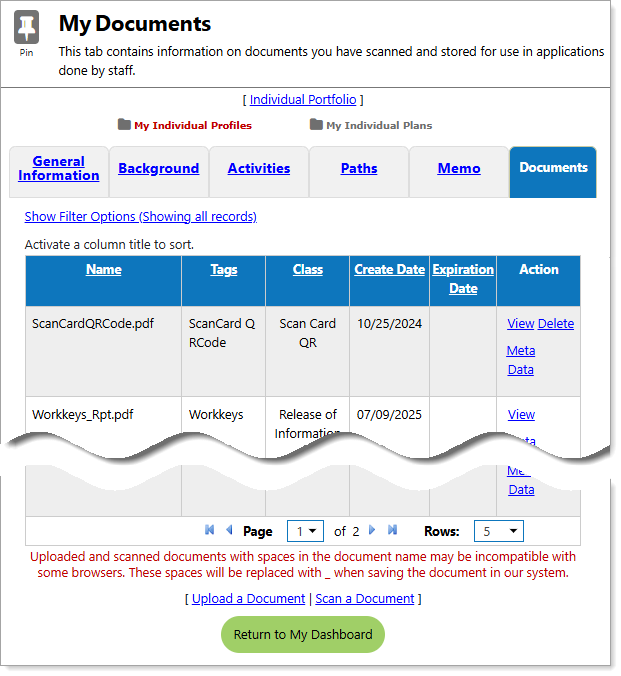
Documents Tab
Where to Find This Feature
-
Top menu bar > Documents icon > My Documents button
-
Left navigation menu > Document Management group > View My Documents link
-
Header bar > Profile icon > Personal Profile > Documents tab
Steps to Manage Documents
From the Documents tab, you can perform the following actions:
|
To... |
Do This: |
|---|---|
|
Upload a Document |
Select the Upload a Document link at the bottom of the page. See Upload a Document for details. |
|
Scan a Document |
You must have a TWAIN-compliant scanning device connected to your computer. Select the Scan a Document link at the bottom of the page. See Scan a Document for details. |
| Find a Document |
Select the Show Filter Options (Showing all records) link above the table. The Document Filters section expands. By entering criteria, you can customize the list to only show documents that:
To apply the filters, select the Filter link; to cancel, select the Reset Filter link.
|
| View a Document |
Select the View link in the Action column and the attached document displays. All supported file types can be viewed. Word processing or spreadsheet files (e.g., .DOCX, or .XLS) are best viewed or edited by downloading and opening them using the related software on your device. |
| Download a Document | From the View Document page, select the Download Document link at the bottom of the page to save a copy of the document to your local drive. |
| Edit a Document | Select the Meta Data link in the Action column. The View Document page displays. You can edit the document information, including the description, name, and keyword tags for searches. You can also view the document history, such as when the document was created and edited. |
| Delete a Document | Select the Delete link in the Action column. A pop-up window requires you to confirm the deletion. Select Yes to remove the document from the Documents tab. |