
 Left Navigation Menu












Track Your Application Status
Overview
When you apply to multiple jobs, it is easy to lose track of where you stand with each one. Application tracking helps you know which companies you applied to and when, quickly reference details when an employer calls or emails you and it keeps your job hunt from turning chaotic and ensures you always know your next step.
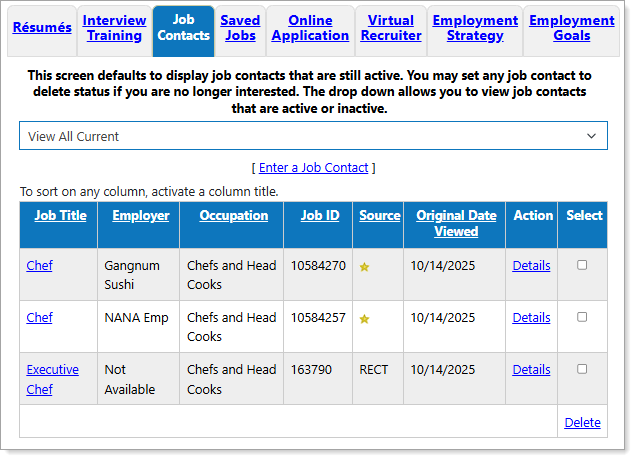
Employment Plan Profile — Job Contacts Tab
Where to Find This Feature
-
Top menu bar > Résumé icon > Job Contacts button
-
Header bar > Profile icon > My Individual Plans > Employment Plan Profile > Job Contacts link
-
Left navigation menu > Quick Menu > My Portfolio > My Individual Plans > Employment Plan Profile > Job Contacts tab
-
My Dashboard > Widgets > Job Seeker Services widget > Saved Jobs link > Job Contacts tab
-
My Dashboard > Widgets > Smart Seeker widget > Additional Options link > Job Contacts tab
-
Directory of Services tab > Services for Individuals > Job Seeker Services icon > My Saved Jobs icon > Job Contacts tab
Steps to Track Your Job Applications
Your site may display different options from those shown here.
-
Select the [Job Title] link in that column or the Details link in the Action column for a job application you wish to track to display the Job Details page.
The page consists of two tabs, Job Details and Interview Prep. On the Job Details tab you can keep track of your application status by performing the following activities:
Job Details Tab To...
Do This:
Display full details about the position
Select the View Job Details link in the Job Information section. See Job Details Page Overview for additional information.
At the bottom of the Job Details page is a Track your application status link that returns you to the Job Details tab.Review your application history
See the method used to apply to the position. If you applied more than once, each method is listed. If you applied with a résumé, you can select the view link to display the résumé you used for the application.
Modify the employer The Employer Information section contains the employer's name and address, prefilled from the job order. You can change it as needed. Provide contact details Select the Initial Contact Method from the drop-down list in the Contact Information section. To enter additional details for an individual spoke with about the application process, provide their name, title, email, etc. in the fields provided. Record your application's progress In the Application Information section, you can provide details about your level of interest and where you are in the hiring process (applied, interviewed, hired, etc.). Add notes Entering additional information about the job in the Notes section, such as how you felt about the company culture, role fit, or interviewer—helps later when comparing multiple opportunities. You may also use this field to remind yourself of topics discussed or questions to ask later. Remove the application Select the Delete Application link at the bottom of the page and Ok on the confirmation pop-up. -
Select the Save button to save the information and return to the Job Contacts tab of your Employment Plan profile.
-
To prepare for an interview, reopen the Job Details page and select the Interview Prep tab. Three sections allow you to create Occupation Related Terms, Practice Interview Questions, and Follow Up Questions for the position. See Prepare with Practice Questions and Industry Terms for details.
Tips
-
Add Detailed Notes—Don’t rely on memory; record insights such as who you talked to and their role, what stood out about the company culture, questions you asked or want to ask next time, and personal impressions. These notes are invaluable for personalized follow-ups or comparing offers later.
-
Check your Message Center regularly for employer and recruiter inquiries.
-
Every few weeks, look at your tracking information to spot patterns:
-
What kind of roles call you back most often?
-
Which industries or employers respond faster?
-
What resume or approach seems most effective?
Learning from your data helps refine your job-search strategy.
-